DaDesktop for Participants - Howto
Objective
This guide is designed for participants (students) looking to enrol in a course hosted on the DaDesktop platform.
Overview of DaDesktop
DaDesktop is a cloud-based solution specifically tailored for IT education. It serves both IT instructors and learners by leveraging virtual desktops powered by the innovative DaDesktop® technology. Within these sessions, every participant is provided with a dedicated, full online desktop environment. This setup allows students to complete exercises while being monitored and guided by the trainer.
The platform is composed of three primary components:
- Management Console -- a web-based interface used for system administration tasks, such as initiating or terminating cloud desktops.
- Training Room -- a collaborative space facilitating remote desktop sharing, audio communication, chat, and lesson recording.
-
Remote Desktop -- a virtual machine instance (either Windows or Linux); each user is assigned a unique machine.
Requirements
To participate from either your office or home, the following resources are required:
- A computer (PC or laptop) equipped with a stable internet connection (minimum 10Mbit/s download and 1Mbit/s upload). Windows, Mac, and Linux operating systems are all supported.
- Chrome or Firefox web browser
- A high-quality microphone or headset (using a telephone is possible but not recommended)
-
A quiet environment free from external distractions and noise (noisy locations like coffee shops are unsuitable)
Recommended:
- Webcam
- A second monitor; utilize one screen to follow the Trainer and the other for your DaDesktop Virtual Machine labs.
- Disable any active VPN before commencing the course
- Disable any security applications that might interfere with the network connection, if feasible
- Use an Ethernet connection if available; otherwise, if using Wifi, run a speed test (e.g., via speedtest.net) to verify internet performance beforehand.
You are encouraged to test joining your course and explore your DaDesktop virtual classroom prior to the official start. Please note that on days leading up to the course, you will only have access to the Desktop itself for a 15-minute period.
Course Access
Please be aware that access to your Course is limited to a 15-minute window outside of scheduled course days.
On scheduled course days, access is available throughout the day. Previously, access was restricted to approximately one hour before the course began.
Keeping Desktop after Course finishes
One key advantage of utilizing DaDesktop is that course participants have the option to continue using their machine even after the course concludes.
Refer to the link above for comprehensive details on how to execute this.
Joining a Course
Open the link provided to you by the coordinator (e.g., dd4t.dadesktop.com/da/join/xxxxx).
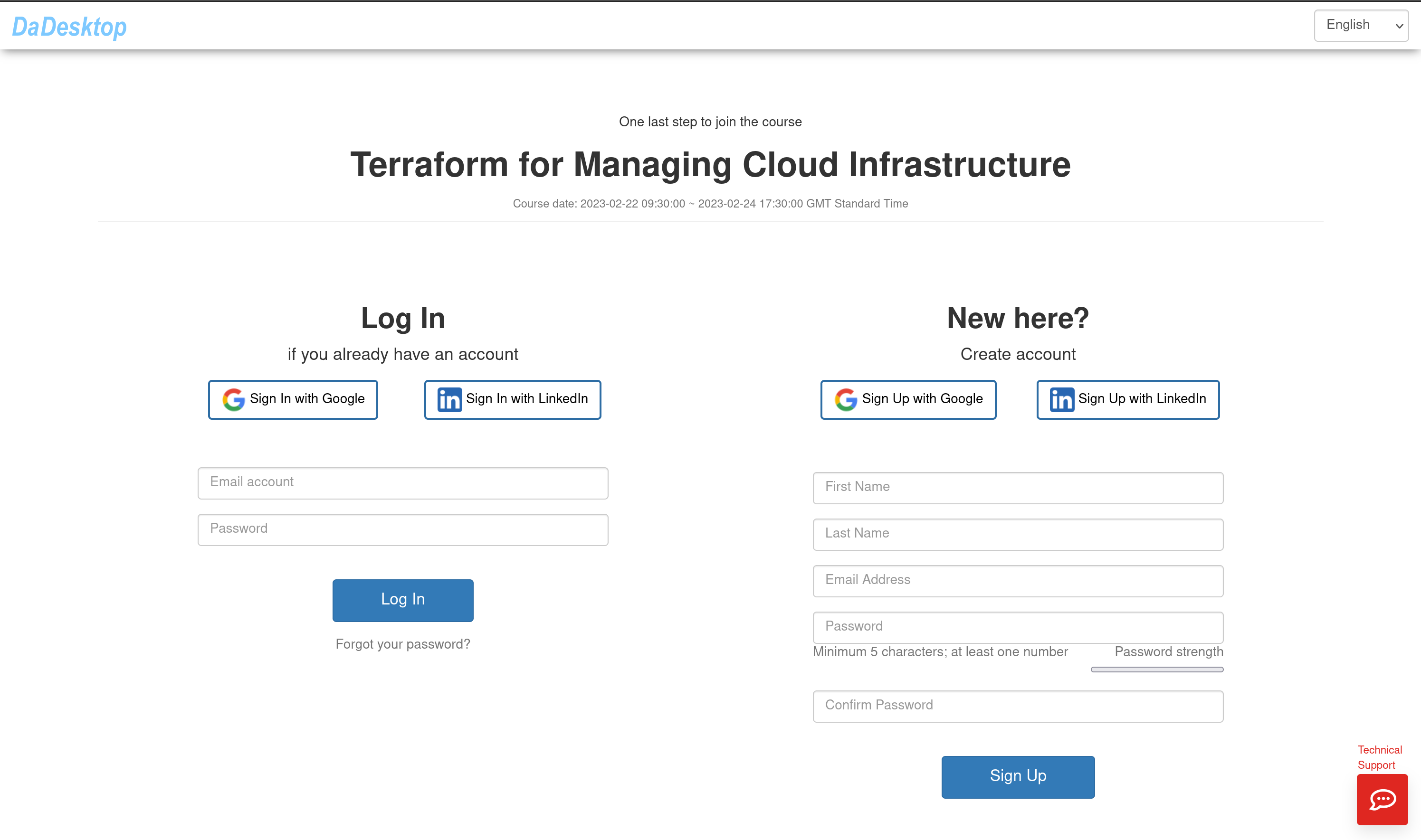
Image 01
If you are a first-time user, please fill in your details under "Account" and click “Sign Up”. You may register via the form or alternatively by signing up with your Google or LinkedIn account.
If you already possess an account, simply log in.
This action will direct you to the Management Console for your course.
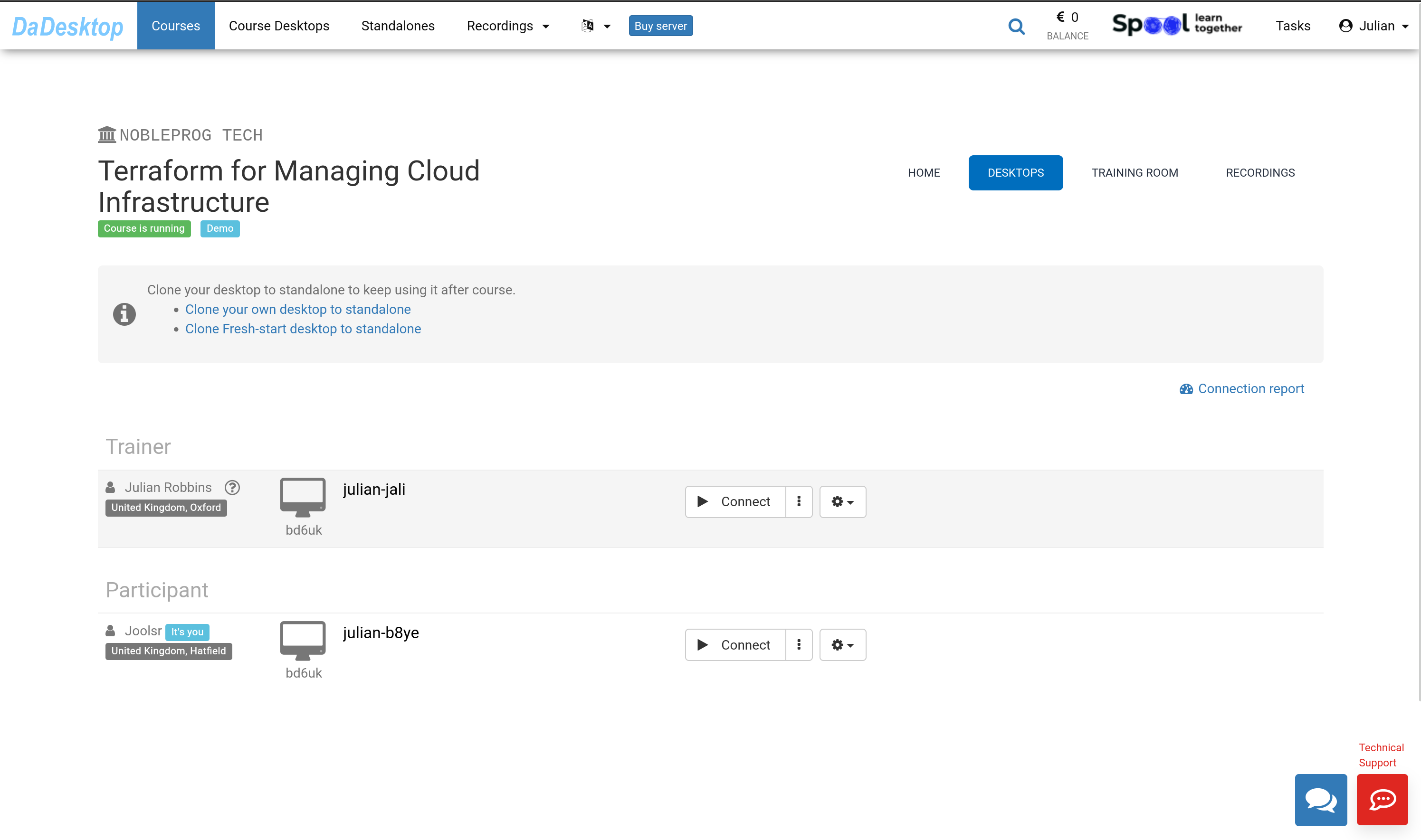
Image 02
Using the Management Console
Select the "TRAINING ROOM" tab.
Press the "Join Training Room" button.
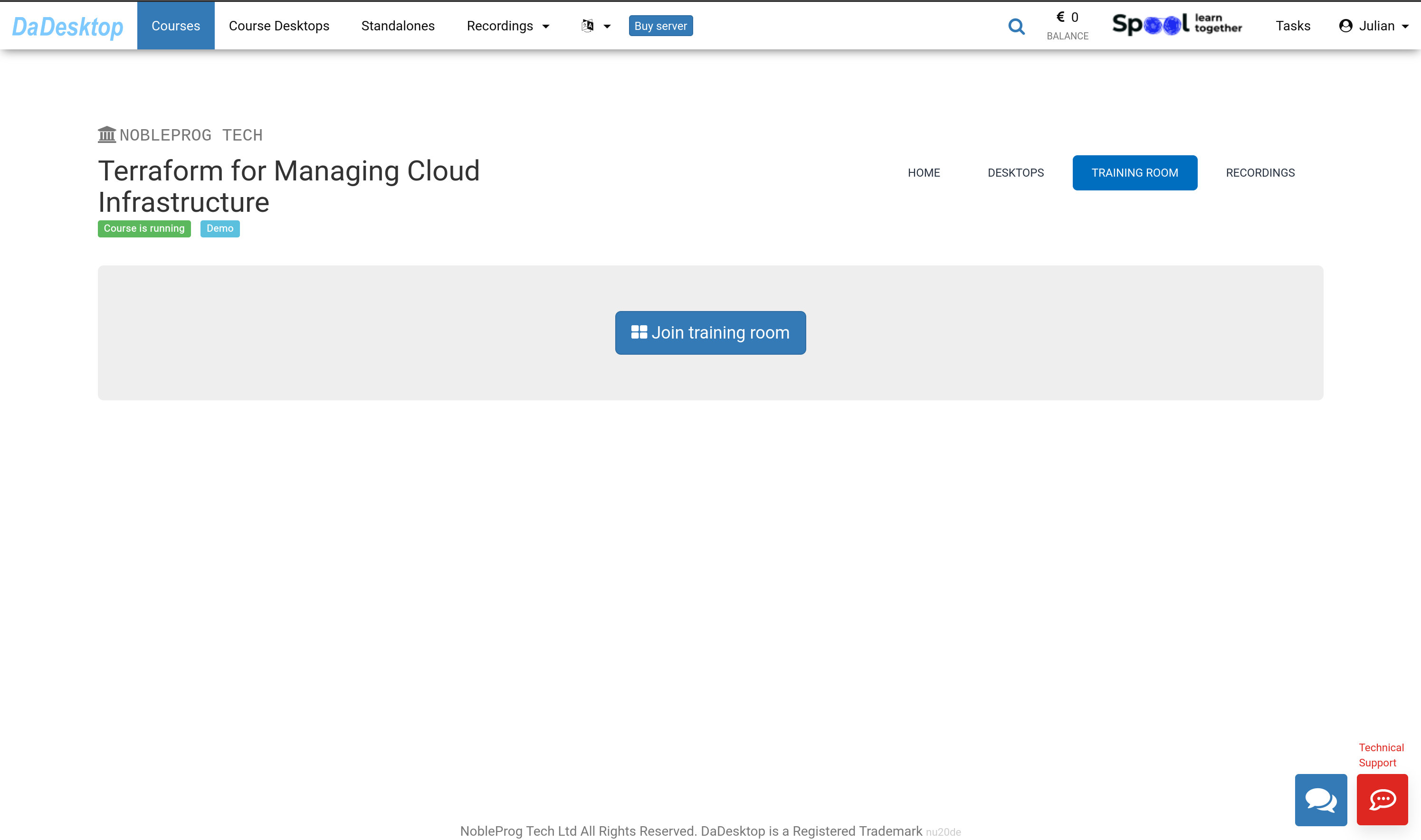
Image 03
The Virtual Training Room will launch in a new browser. A pop-up window will appear, requesting permission to allow items to be copied to the clipboard. Click "Allow".
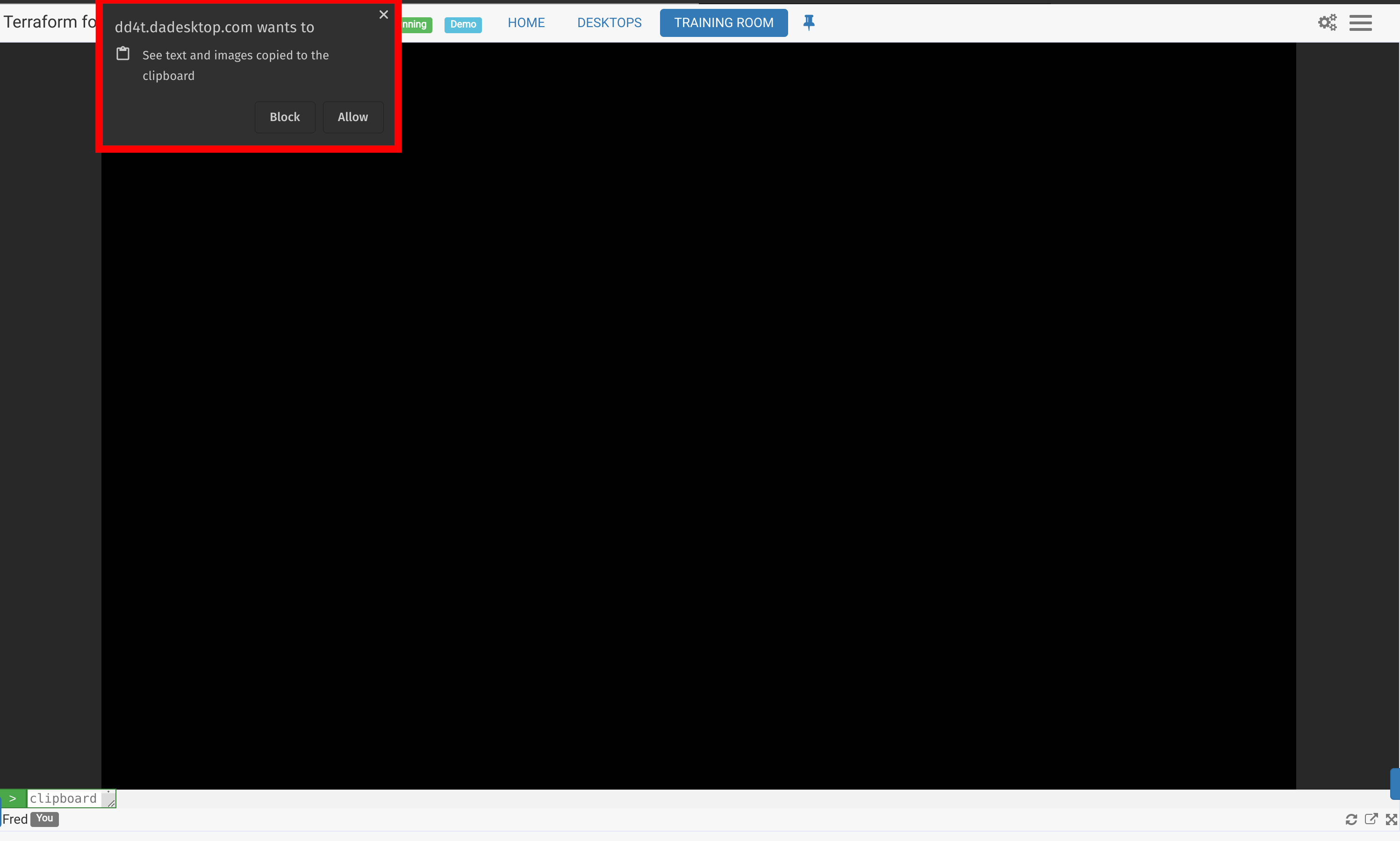
Image 04
Navigating the Training Room as a Participant
The Training Room interface displays a tab at the top of the screen, which provides links to return to the course.
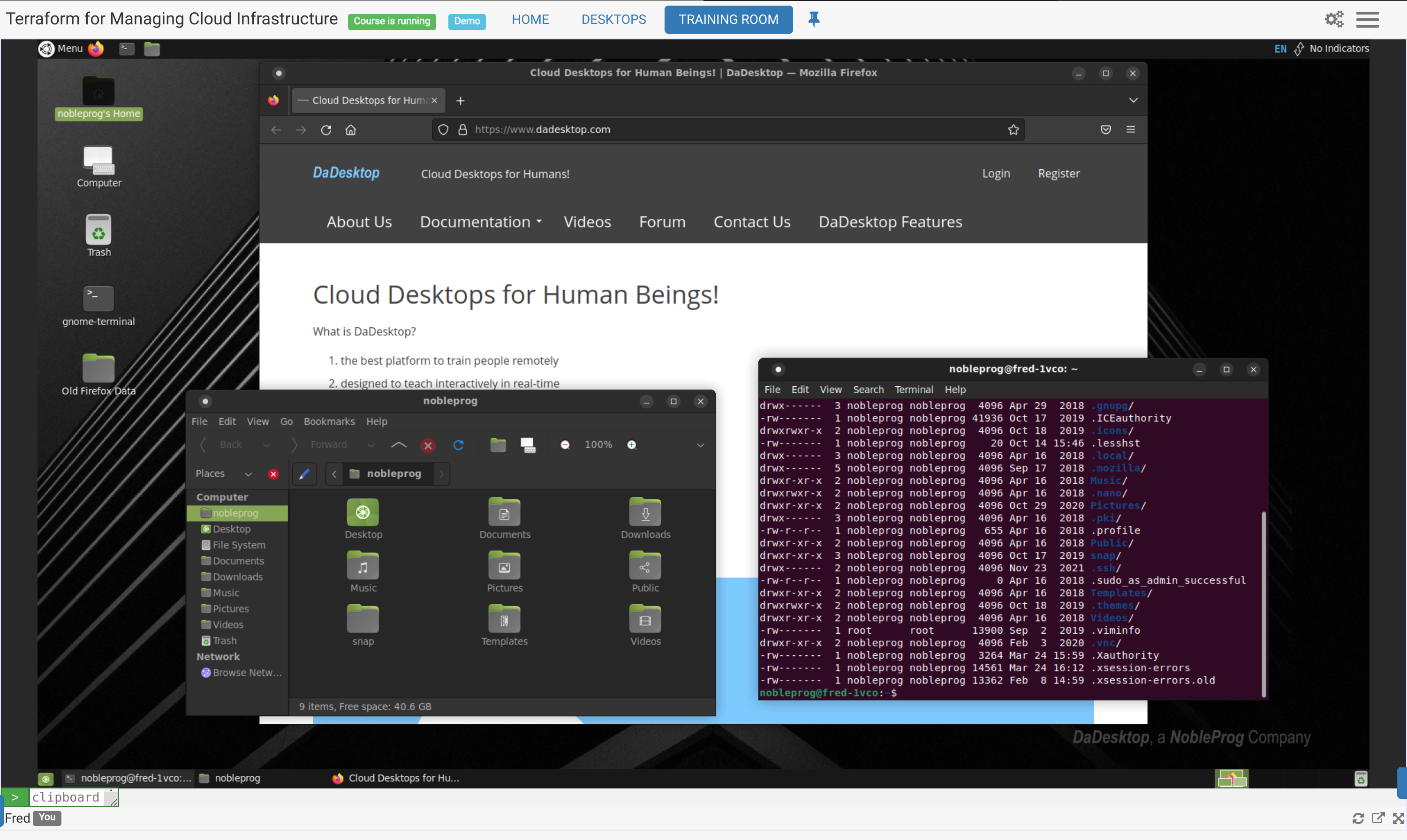
Image 05
Controls available at the bottom of the screen
- From here, you can 'pop out' the screen to an external monitor if needed, or maximize the browser window to full screen.
- Additionally, a small blue toggle appears at the bottom right of the screen if you wish to access DaDesktop support chat.
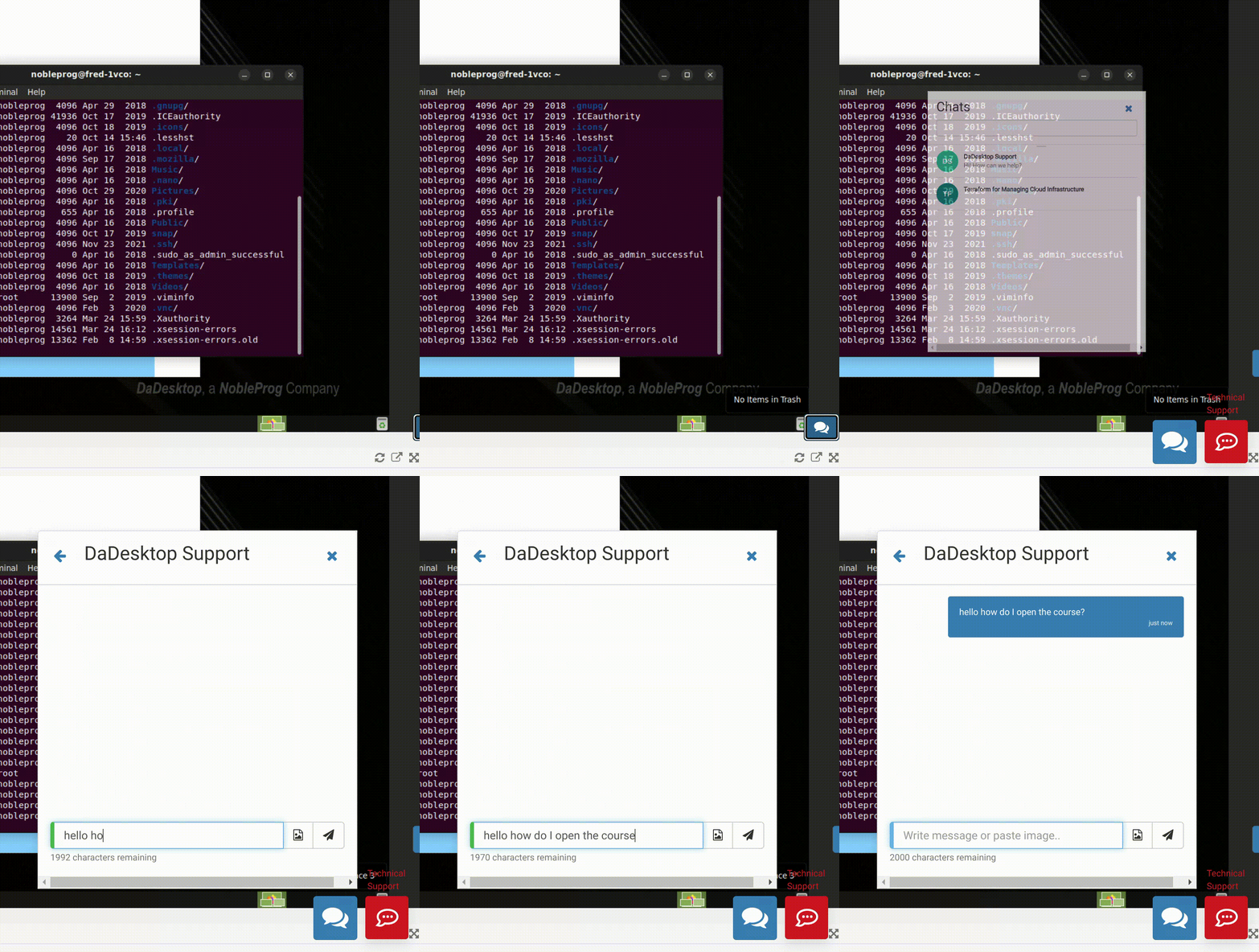
Using the new Clipboard function
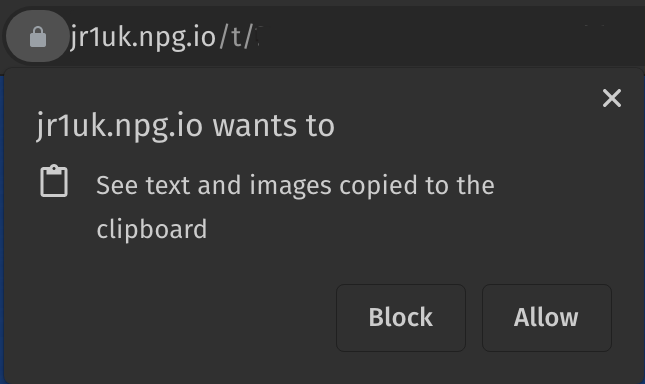 To transfer text, web links, or functions from your local computer to the Virtual Machine, the 'Clipboard' feature is utilized.
Upon connecting to your Online Course or Stand-alone Desktop, a pop-up similar to the one shown will appear. Click ‘Allow’. Note that currently, images cannot be copied to the clipboard when using DaDesktop.
Image 06
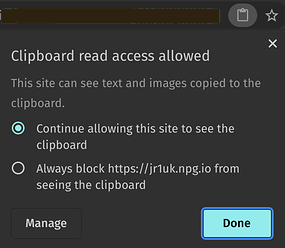 By clicking the small clipboard icon in the address bar, you can adjust the clipboard settings for this specific site.
Usage
- On Windows and Linux VM Desktops, use standard clipboard copy and paste from your PC, i.e., Ctrl-C and Ctrl-V.
- On a Mac host, copy as usual and then press Shift + Ctrl + V, or use the middle mouse click, to paste.
Image 07
Please get in touch with us if you require further assistance while using this feature..
Original Clipboard (to be used only for incompatible browsers for the new Clipboard) i.e., IE, or as a fallback.
- To copy text between your local machine and the virtual DaDesktop machine, type or paste the content into the clipboard area located at the bottom left of the screen.
-
On the virtual machine, click the middle mouse button (or scroll wheel) to paste the clipboard contents onto the desktop. This method works in any DaDesktop area where text input is possible. This assumes you are using the standard Linux DaDesktop virtual machine.
Mac users - Use Command c or ⌘ c (copy) and Command v or ⌘ v (paste). Once pasted into the dd4t clipboard, inside dd4t it becomes Control X, C, and Control V to cut, copy, and paste. - If using the Windows virtual machine, right-click to paste from the clipboard.
To resize the clipboard area, click the green and white arrow icon situated at the bottom left of the screen.
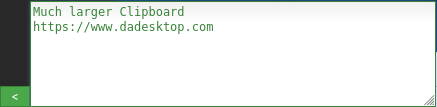

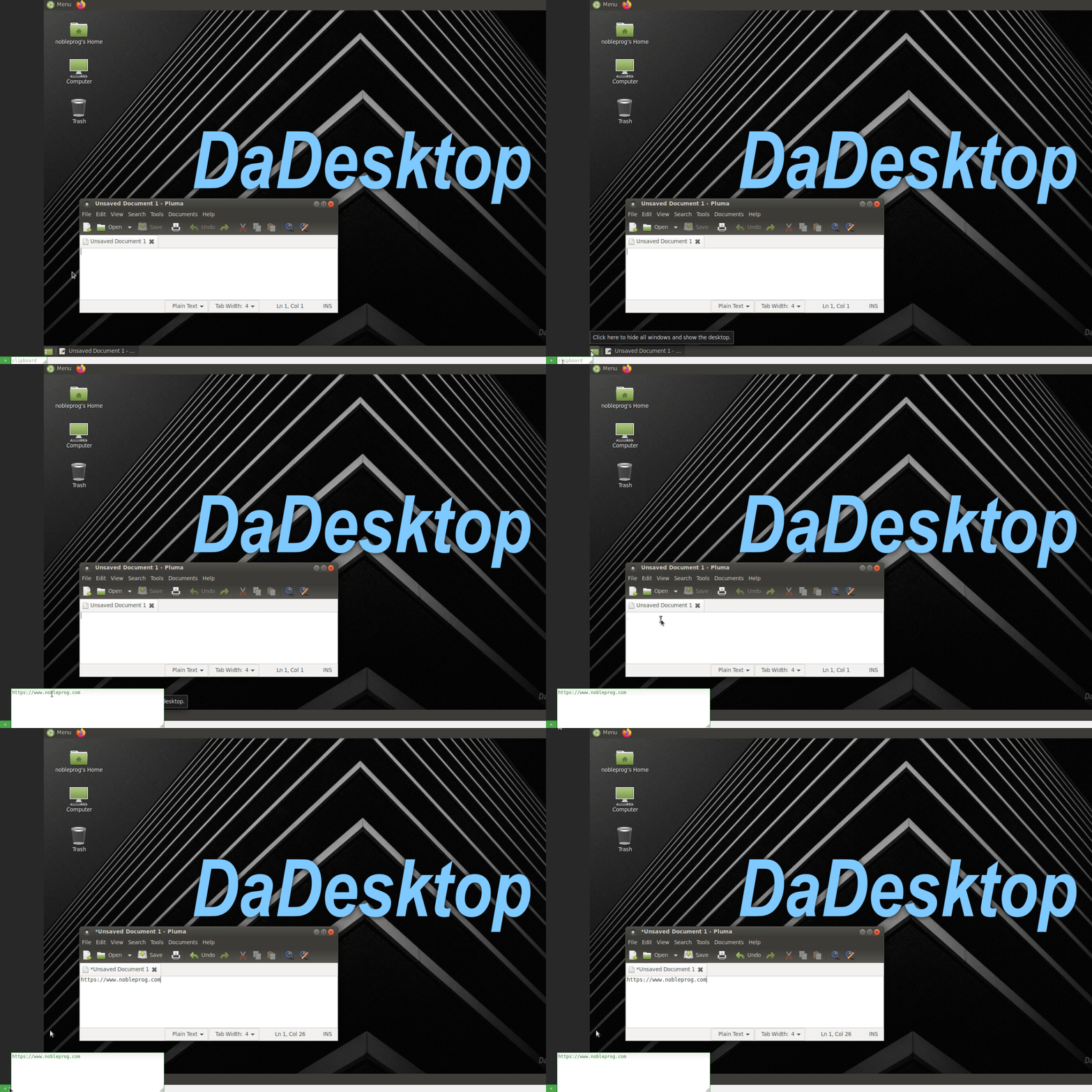
Image 08
Using the mouse in a multi-user scenario
This feature introduces a display where the username of the person controlling the mouse follows the cursor when multiple users are connected to the same desktop. This is particularly useful in multi-user scenarios and during training activities where different users may take control of the mouse at various times.
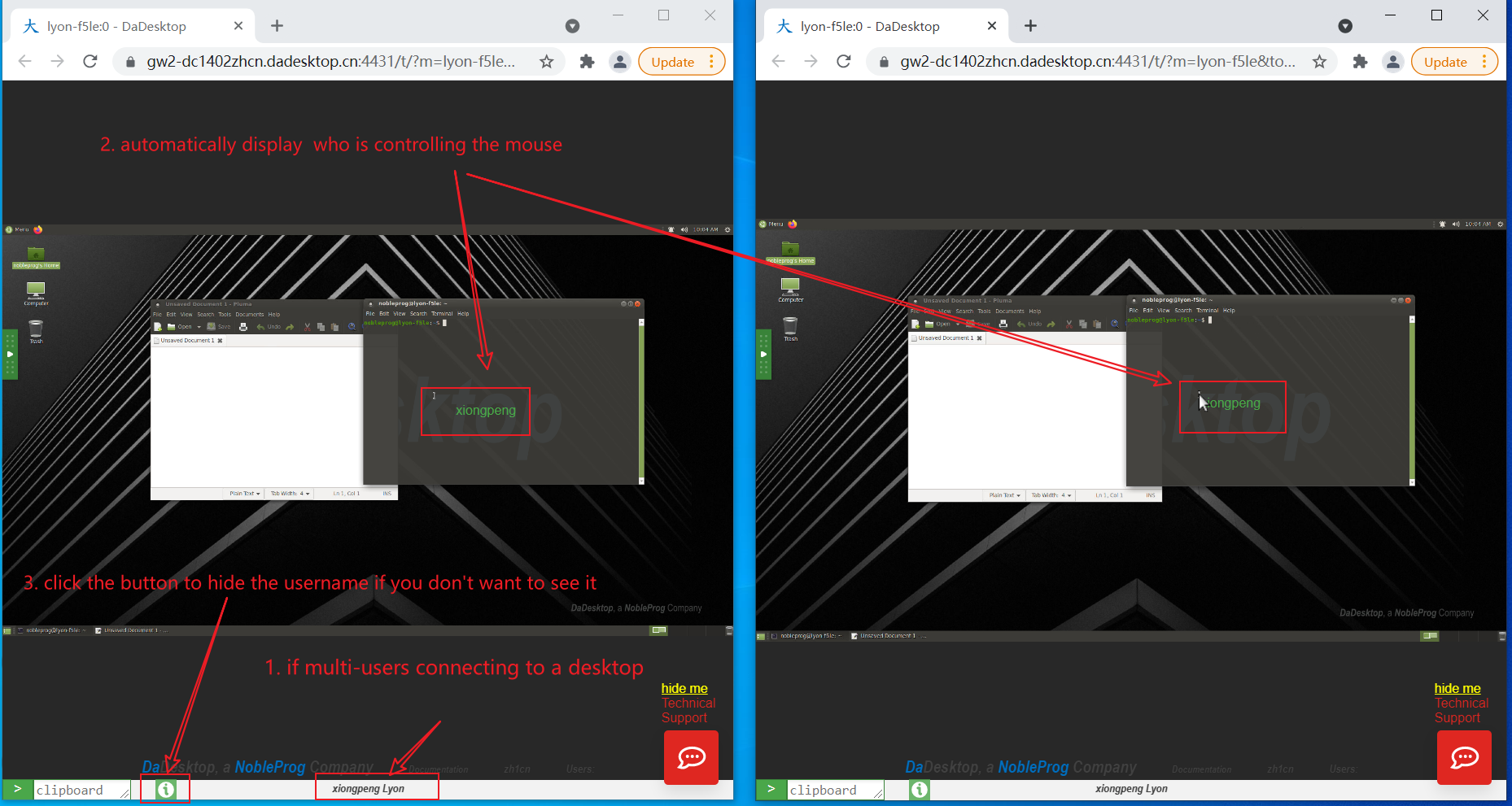
Image 09
When multiple users are connected to the desktop, their usernames are displayed in the centre bottom part of the screen.
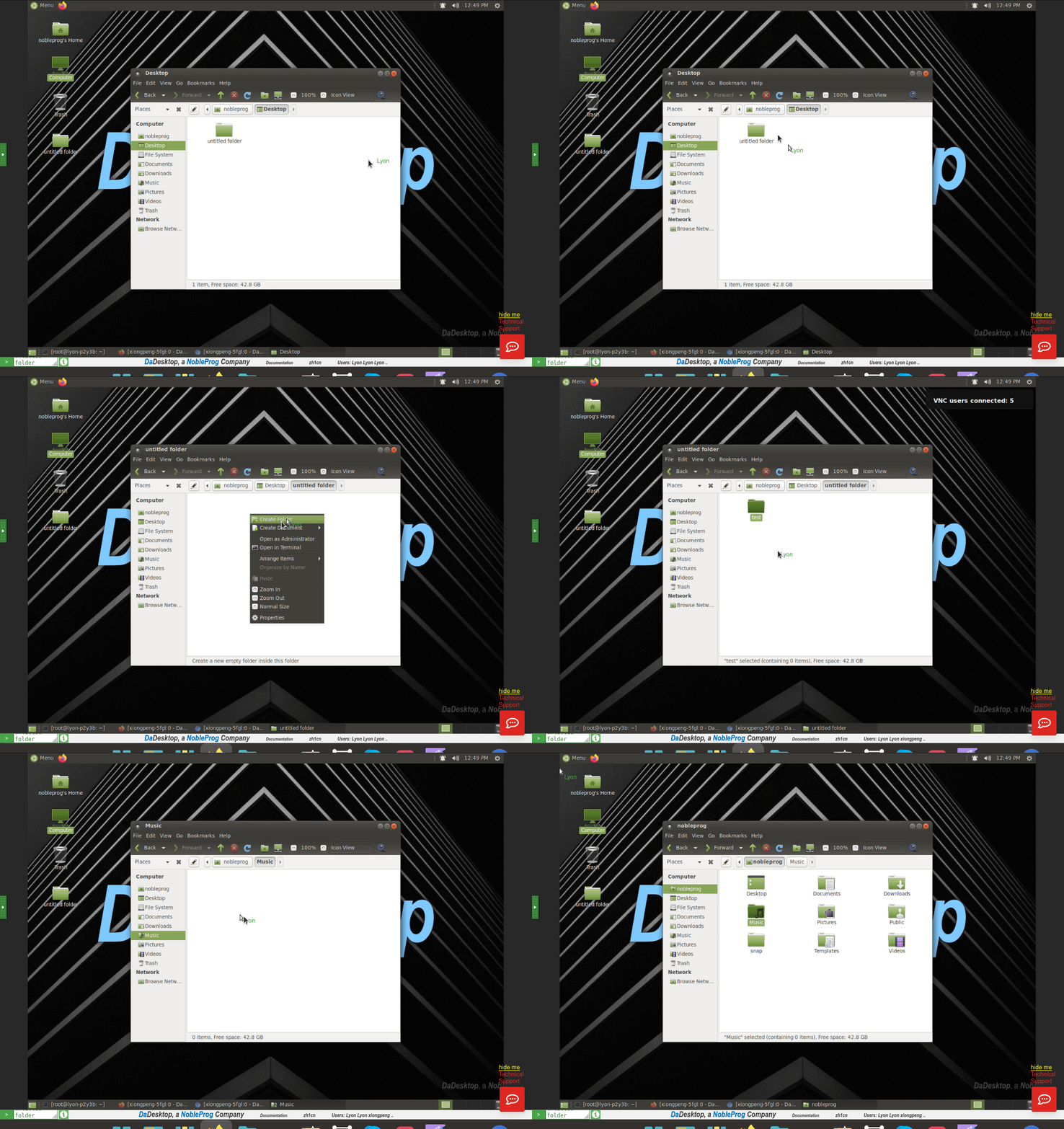
Image 10
This feature can be enabled or disabled at your discretion by clicking the ‘Info’ button in green located at the bottom of the screen.