Setting Up a New DaDesktop Server
Deploying a DD Node on GTHost / Hetzner Servers
The following notes are intended to guide you through the deployment of a DaDesktop Node (Server) on bare metal Linux servers provided by GTHost, Hetzner, or similar vendors. Please note that these instructions are subject to change as the installation and deployment scripts evolve.
This process assumes that a server has already been procured and is being configured with Ubuntu Jammy 22.04. For optimal performance, consider using RAID0 (striping) to accelerate disk access, provided you have at least two disks with sufficient capacity. On Hetzner, this configuration should be defined using the 'installimage' process while in Rescue mode.
Preparation and OS Installation for GTHost / Hetzner Servers
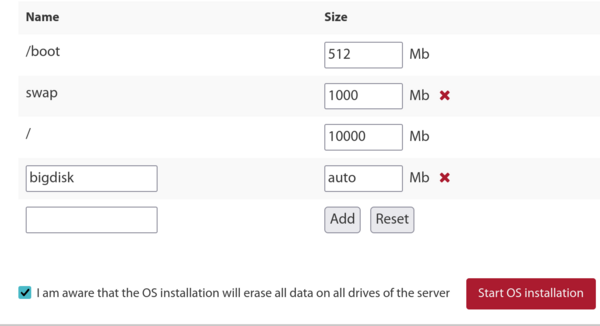
- Begin by establishing an SSH connection using the provided root credentials. Execute 'apt update' and 'apt upgrade' to ensure all system packages are current. Subsequently, run 'apt autoremove' to eliminate any obsolete packages prior to the upgrade process.
- If utilizing Hetzner, the system will boot into rescue mode. You must define the distribution requirements, including software RAID (mdm), xfs, and IPv4 configurations, before rebooting and upgrading. It is generally recommended to accept the default settings for the small /boot and /boot/esp partitions using ext4, avoiding xfs for these specific partitions, and to omit the swap partition as it is not required. Allow the / partition to utilize xfs and occupy the remaining disk space.
- For LeaseWeb or other providers, you will need to modify the main / filesystem to use xfs instead of ext4 or btrfs. The following notes serve as a guide; however, configuring the / partition to use xfs is more complex than simply defining a /bigdisk partition with xfs. This is because modifying the / filesystem type requires operations outside the OS, as changing the / filesystem while it is mounted is neither easy nor safe.
-
To create the xfs filesystem, it is advisable to use the supplier's tool if available, as it simplifies the process. Otherwise, use commands like the following from the rescue system:
mkfs.xfs -f /dev/mdx (this formats the / partition with xfs, using -f to force the overwrite).
NB: We no longer define /bigdisk as a separate partition; it is now simply a directory under / instead. - Mount the xfs filesystem using 'mount -t xfs /dev/mdX /' outside of the OS, or via the system portal.
- If using a /bigdisk partition (which is no longer common practice), include 'defaults,nofail 0 0' in /etc/fstab to ensure the system can boot even if the separate /bigdisk partition fails to mount successfully.
- Run 'systemctl daemon-reload' to allow systemd to reload /etc/fstab.
- Execute 'mount -a' to verify that partitions are created as required, and confirm with 'df -T'.
-
Reboot the system.
Executing the DaDesktop Installation Script
- Connect to the server via SSH, e.g., svr@xxxxxxxxx.
- Proceed with the installation using the DaDesktop install script, for example:
- curl http://npg.io/d > d
- At this stage, the underlying OS should be upgraded from 22.04 to the latest Ubuntu version, such as Ubuntu 23.10 Mantic, with Ubuntu 24.04 Noble expected shortly.
- The most effective method is to use the script named 'update-os', located in /apps/dadesktop_npnode_deploy/modules/00-upgrade-os. This approach is simpler than manual distribution upgrades and replaces the apt sources from jammy to mantic (nautic), allowing the upgrade to be completed in a single procedure rather than multiple steps. NB: Although upgrading through two versions simultaneously is typically considered poor practice, it is quite safe here due to the minimal number of installed packages.
-
If you encounter DNS issues during the distribution upgrade (as happened in one instance), resolve the DNS problem by running:
rm /etc/resolv.conf ; echo "nameserver 8.8.8.8" > /etc/resolv.conf. - Optionally, set the hostname, for example lo33uk.npg.io, if you wish to create a DD node with a specific name, particularly if reusing a previously configured node. Reboot to apply the hostname if necessary.
- Next, execute the main script to install the DD Node. It is recommended to use tmux to prevent potential SSH disconnections during the upgrade. Within the current directory where the script was downloaded, run 'bash d'.
- Monitor the messages logged on the screen for any errors. During the script execution, the server IP will be added to the NP access list. This occurs automatically, but you may need to wait a few minutes for the whitelist cron job to update before proceeding.
- Review the script's progress and address or report any issues that arise.
- Run the cleanup script located at /apps/dadesktop_npnode_deploy/modules/00-cleanup. This script removes numerous unused packages and downgrades others as needed.
- Execute /apps/zabbix-agent/services/test-all.sh to check for any remaining issues.
- For any unmaintained packages, remove them using 'apt purge xxx, yyy'. Also, remove any broken links that are identified.
-
Finally, reboot the system and test its operation.
Testing the DD Node Post-Installation
- Verify the new dd server entry and test functionality with test TPAPI etc. in the DaDesktop GUI.
- Add start and expiry dates for the server in DaDesktop, and assign it to a datacenter if required.
- Monitor the new server's operation in Zabbix and resolve any issues if necessary.
- Perform a test by adding Standalone to the server and running it.
- Add the server to the Datacenter if required.
- Optionally, add Billing rules for the new server if required.
- Copy Operating System templates to the server if needed.
- If this server is designated for a specific course, alert the Trainer/Coordinator to use this particular server.
Enjoy!