Transferring files from the host machine to the DaDesktop environment
Addressing a frequently requested capability, DaDesktop now allows users to copy files directly from their local laptop or desktop into the virtual DaDesktop environment. These transfers are suitable for various assets, including presentation materials, ISO images intended for use within a nested virtualisation system that hosts multiple servers and desktops, or any general files required by specific training applications.
The team has implemented a streamlined file transfer feature in the latest Windows 10 and major Linux templates. This functionality enables users to simply drag and drop files from the host machine (such as a personal laptop or desktop) directly into the DaDesktop instance.
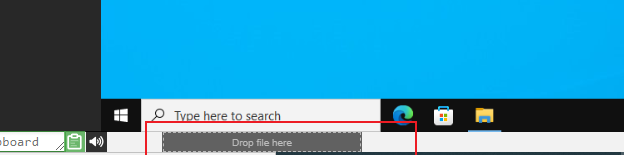
While the current implementation supports the transfer of one file at a time, users needing to move multiple assets can create a zip archive and drag that single file into the environment. The process utilises chunking technology to ensure efficient transmission of large files, performing optimally on high-speed fibre internet connections. Directory structures within any compressed archives, such as zip files, are preserved upon transfer.
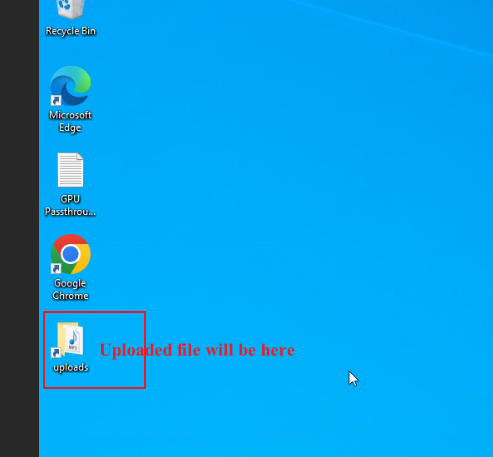
In Linux templates, there is currently no desktop shortcut to the Uploads folder equivalent to the one provided in Windows environments. Instead, transferred files can be located at the following path:
/home/student/uploads-to-dadesktop
In summary, the feature availability is as follows:
OS Templates with this feature enabled
- Debian 12 - v20240314 and newer
- Ubuntu 22.04 - v20240314 and newer
- Ubuntu 24.04 - v20240314 and newer
- Windows 10 - v67 and newer
OS Templates without this feature enabled (as yet)
- Debian 11
- Almalinux
- Kali-linux
- Any older versions of the templates
Please note that further enhancements to this 'early release' feature are expected to be added shortly.
For any feedback on this feature, please contact us via the DaDesktop Technical support chat.