Resizing the Disk for a Fresh-start Desktop within a Course
If an existing Fresh Start machine lacks sufficient storage capacity, its disk size can be increased to accommodate more data.
To begin, ensure that the Fresh-Start machine is shut down.
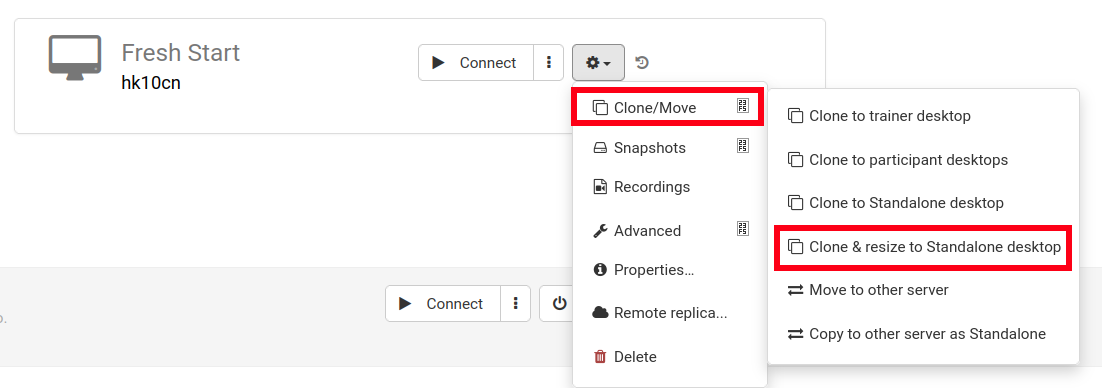
Next, select Clone & Resize to create a Standalone instance, as demonstrated below (an organization must be established if one does not already exist).
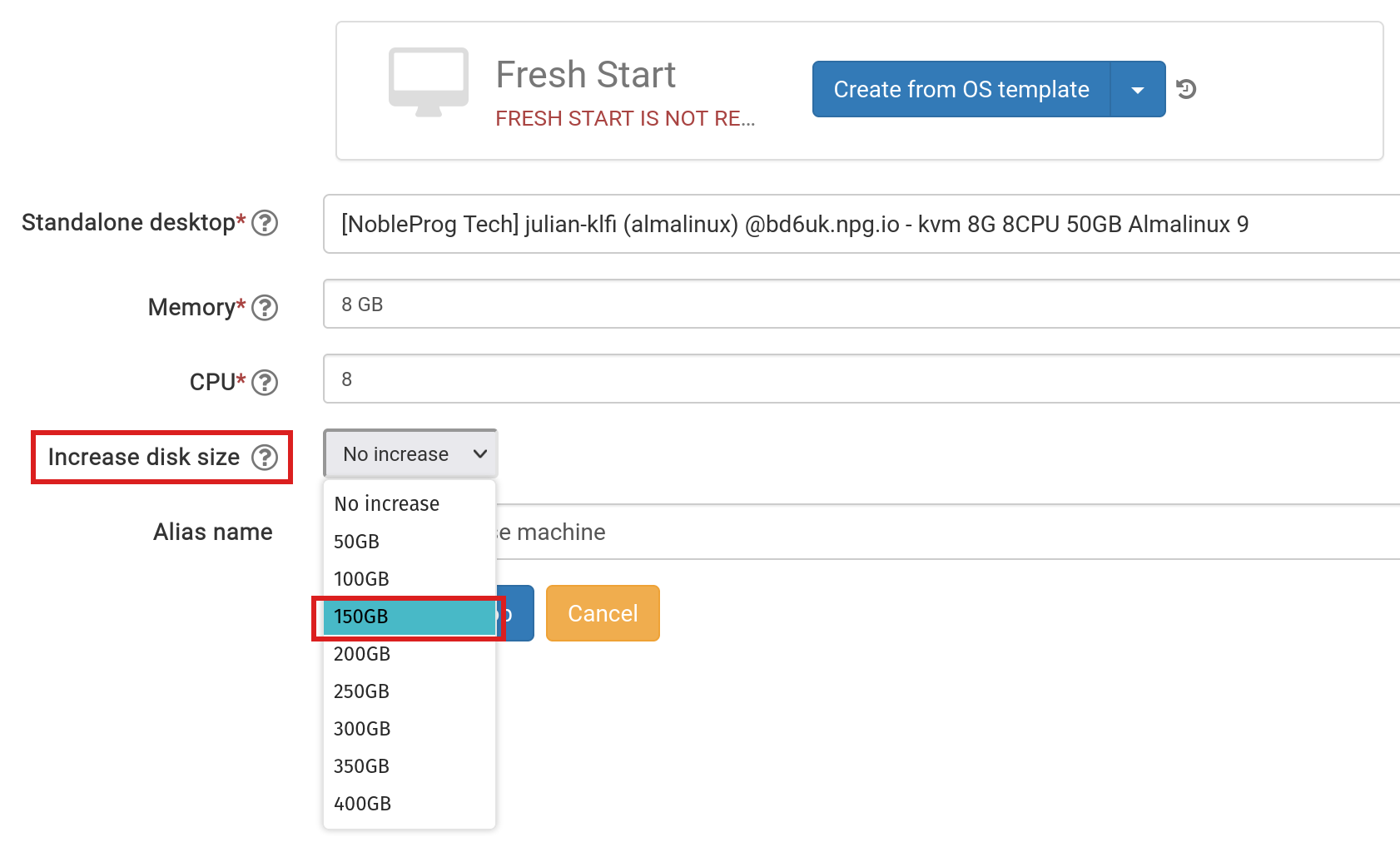
In this stage, adjust the disk size to the required capacity and submit the changes.
Navigate to the 'Standalones' link at the top of the page to locate the new instance and verify its presence.
Return to the course and remove the original Fresh-Start machine using the 'Delete' button.
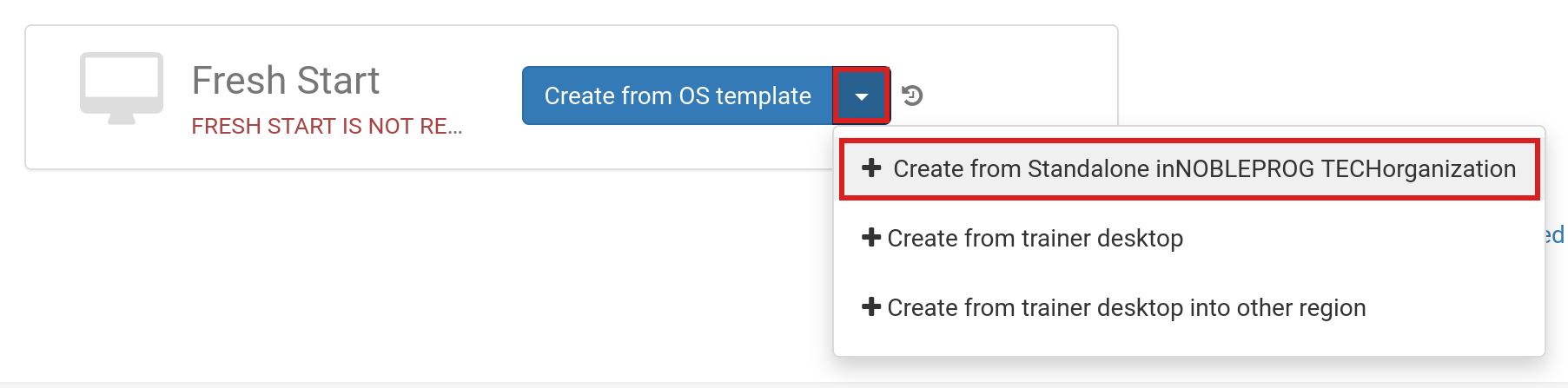
Select the 'Create Fresh-Start from my Standalone' button
Within the 'Create from Standalone' dialog, you have the option to increase the disk size if it was not adjusted in the previous step.
Enter an Alias name if desired, and then click the 'Create Desktop' button.
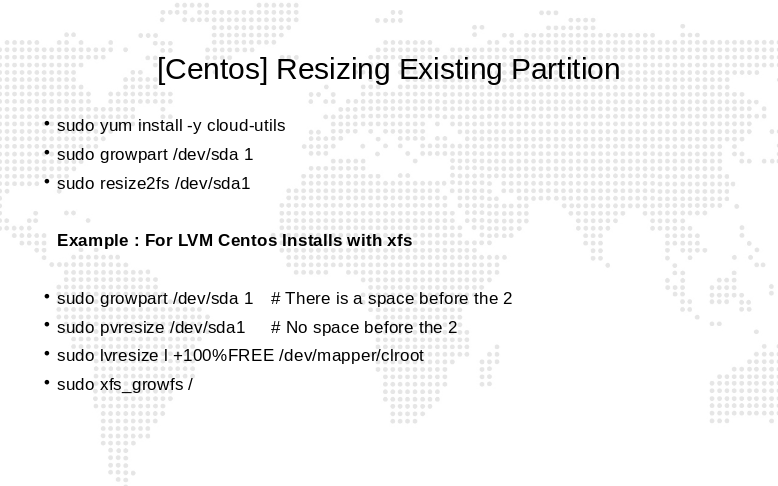
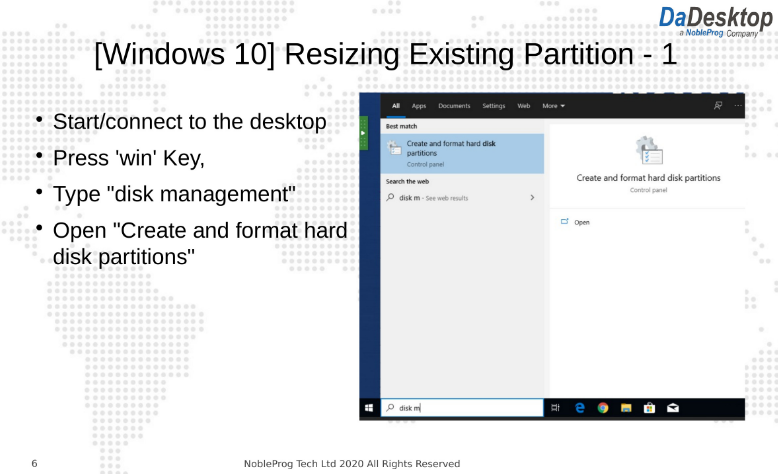
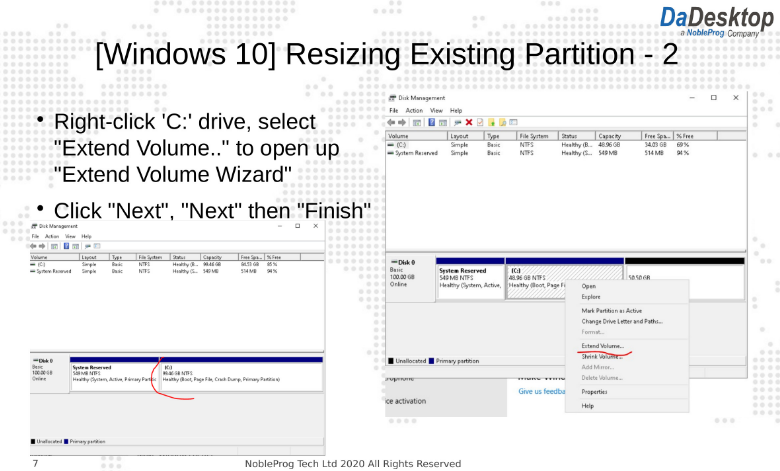
For standard Desktop Linux and Windows OS templates, the operating system will automatically expand to utilize the new space. Note that AlmaLinux standard templates utilize a different default partitioning scheme, necessitating the additional manual steps outlined below.
When using Custom OS Templates, automatic partition extension may not occur; in such cases, manual intervention is required, as detailed in the following steps.
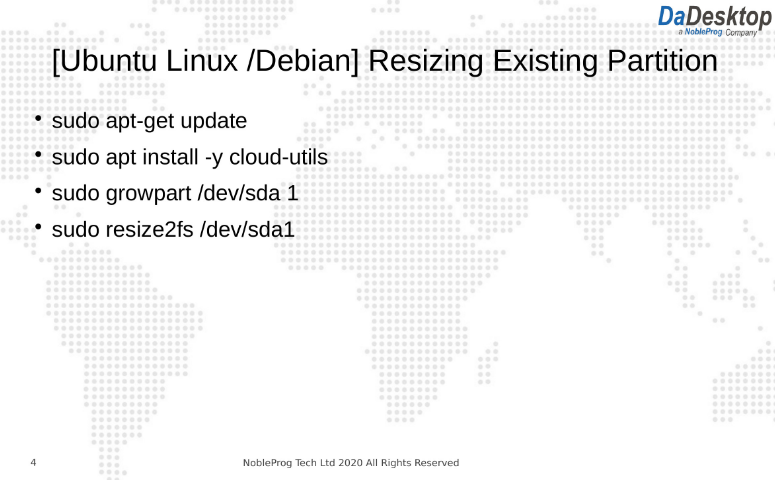
For Custom OS Templates and AlmaLinux standard templates, proceed with the following instructions to extend the partition(s)
Adhere to the guidelines below to modify your desktop partitions:
- Launch the terminal or command prompt
- Execute the commands listed below