Provision Desktop from OS Template
To initiate the creation process using an operating system template, please follow these steps:
- Navigate to the Desktops menu within the course interface.
- Select the "Create From OS Template" option.
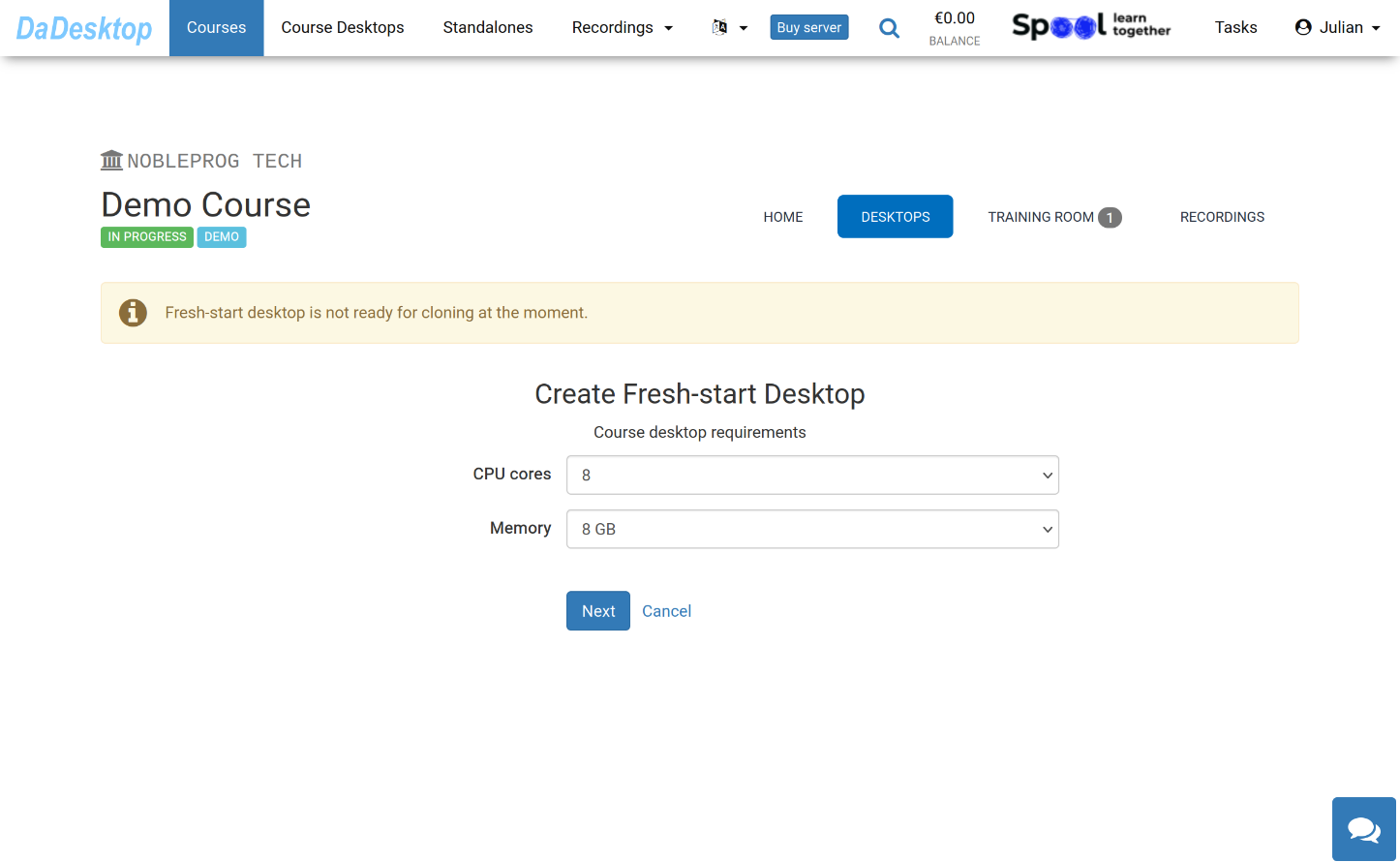
The following interface displays the available configurations when deploying from an OS Template.
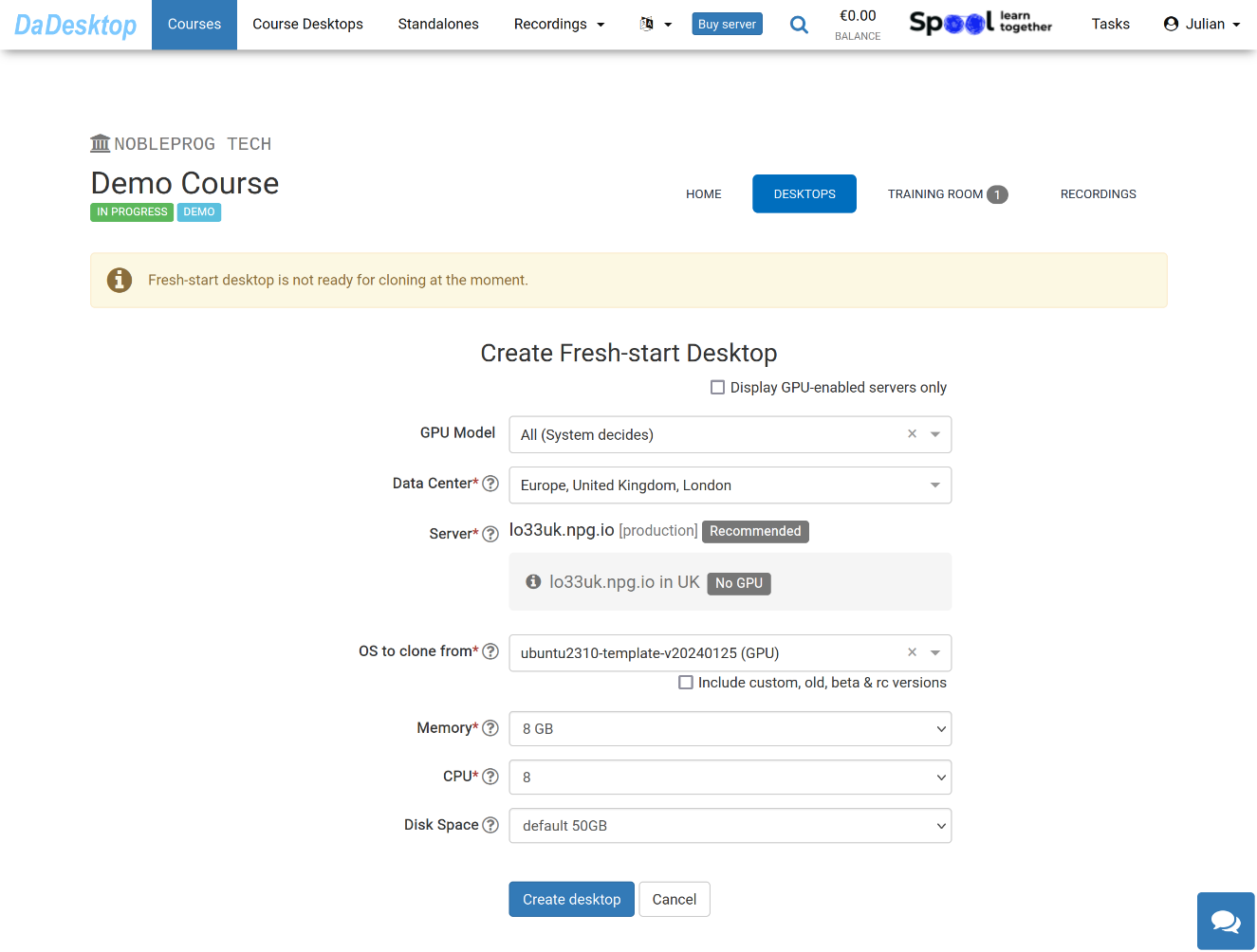
A detailed explanation of each configuration field is provided below:
-
GPU Model
Select the specific GPU and type if necessary. Enabling the 'Display GPU enabled servers' option filters the list to show only servers equipped with available GPUs. -
Datacentre / Server
Select the datacentre region and server that is geographically closest to your location for optimal performance. -
OS to clone from
Operating System (OS) templates are available for Windows and Linux distributions, including Ubuntu, Debian, Almalinux, and others. -
Include custom, old, beta & rc Versions
DaDesktop maintains and updates templates regularly. However, if you encounter issues with the latest version, you can access previous or beta releases through this option. -
CPU
Specify the number of CPU cores required. Note that the default setting is 8 Cores, which typically satisfies most general Linux and Windows workloads. -
Memory
Define the memory allocation limit in GB for the desktop. Please note that allocation is subject to server resource constraints, which vary by server. To request an increase in these limits, please reach out via Support Chat. -
Disk Space
Specify the amount of disk space to be allocated. The default allocation is 50GB.