Initialize Fresh Start from a Standalone Desktop
-
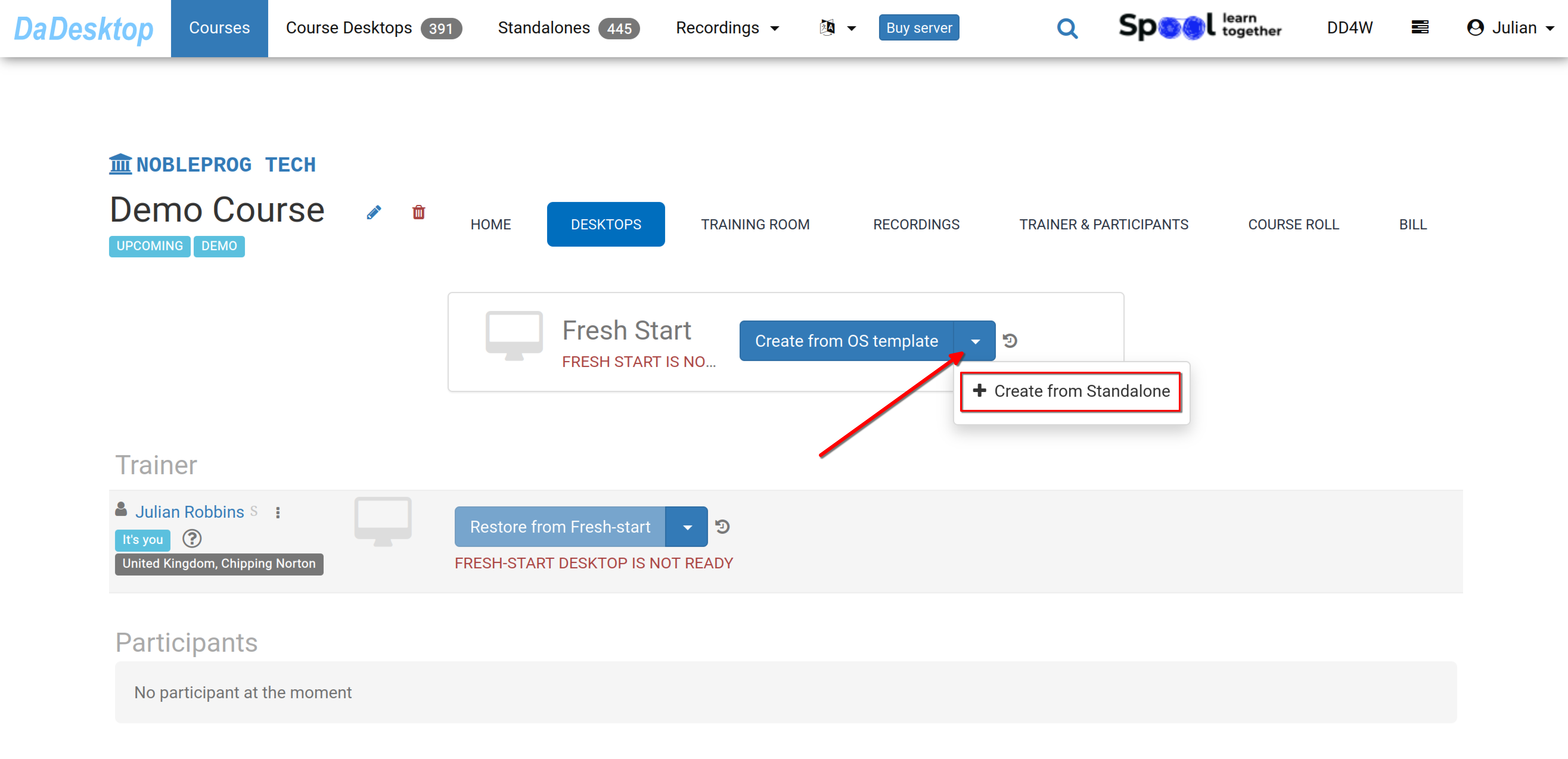
Navigate to your existing course (illustrated below with a demo example). Select the Desktops tab, expand the dropdown menu, and select "Create from Standalone" to establish your Fresh Start environment.
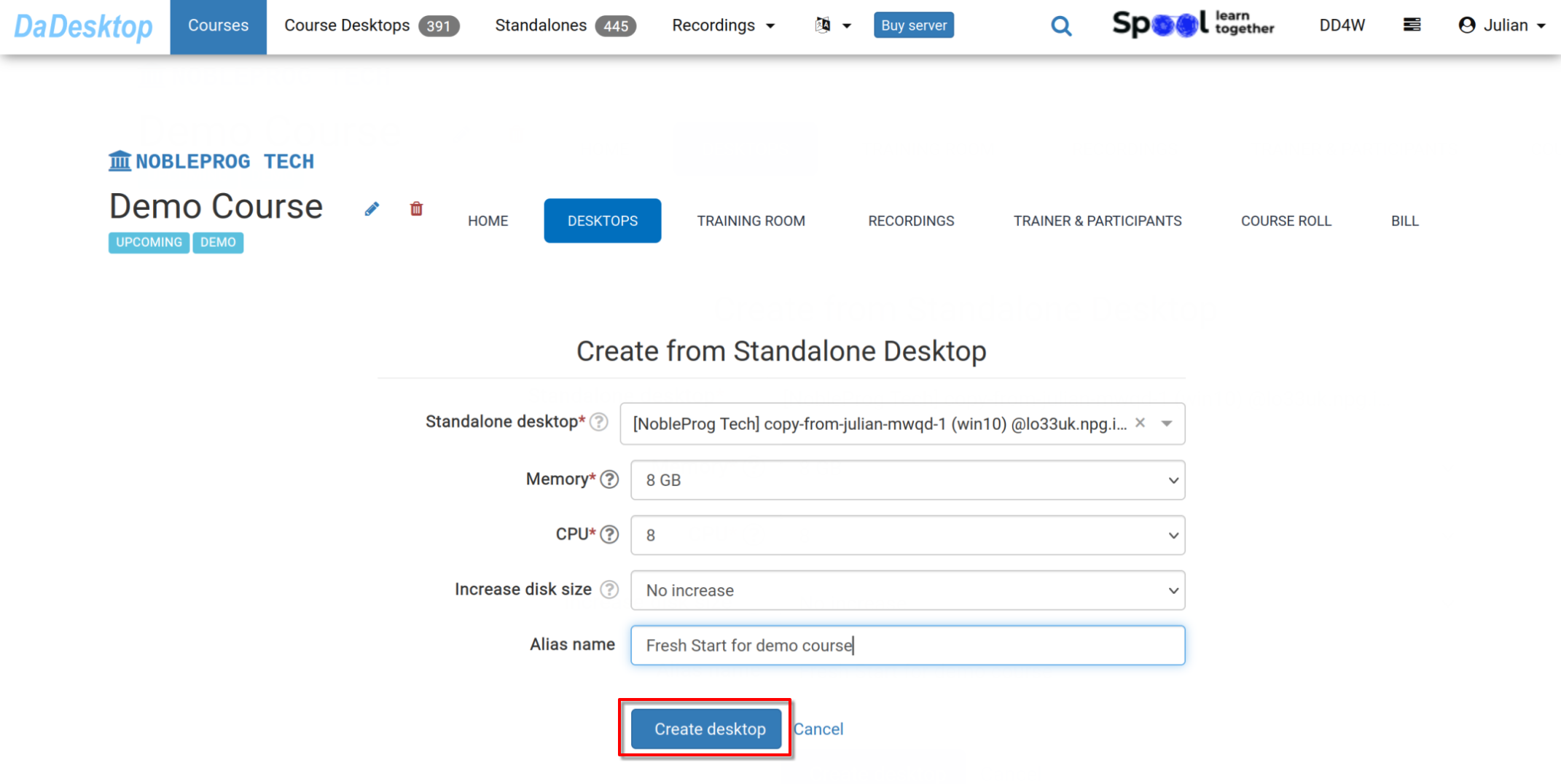
- Select the specific "Standalone desktop" that has previously been configured for your course environment, including any installed software, instructional materials, and assessments.
-
If necessary, you may adjust the Memory and CPU allocation or increase the disk capacity during this setup phase. Proceed by clicking "Create desktop".
-
Once complete, the Fresh Start is ready for use. Both Trainers and Participants can clone desktops from this baseline.
The Fresh Start serves as the central desktop within the course, enabling simultaneous cloning for all Participants and the Trainer. If needed, any user in the course can restore their environment from this Fresh Start.
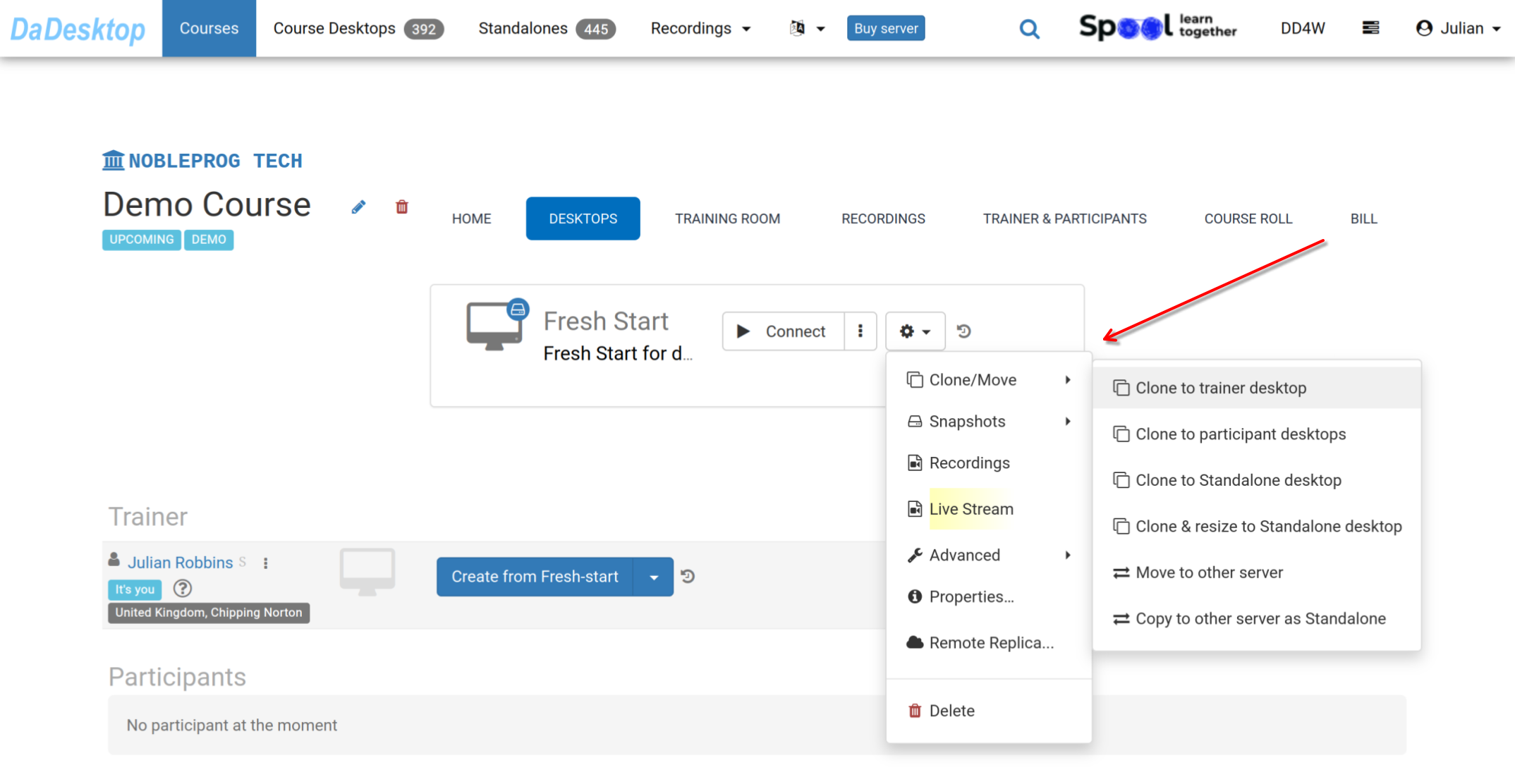
Accessing the 'Cog' menu reveals additional capabilities, such as cloning the Fresh Start to a Trainer, Participant, or Standalone machine, as well as cloning and resizing machines to Standalone status. Further options include migrating the Fresh Start to a different server, creating Snapshots, reviewing Recordings, or configuring a Remote Replica.Please refer to the relevant documentation for detailed guidance on these specific features.