Setting Up Independent Desktops
To begin configuring an independent desktop environment, please follow the steps outlined below:
- Navigate to the top menu and select 'Standalones'
- Select 'Create New Standalone' Desktop to initiate the process
- A configuration dialog will appear, as shown in the image below
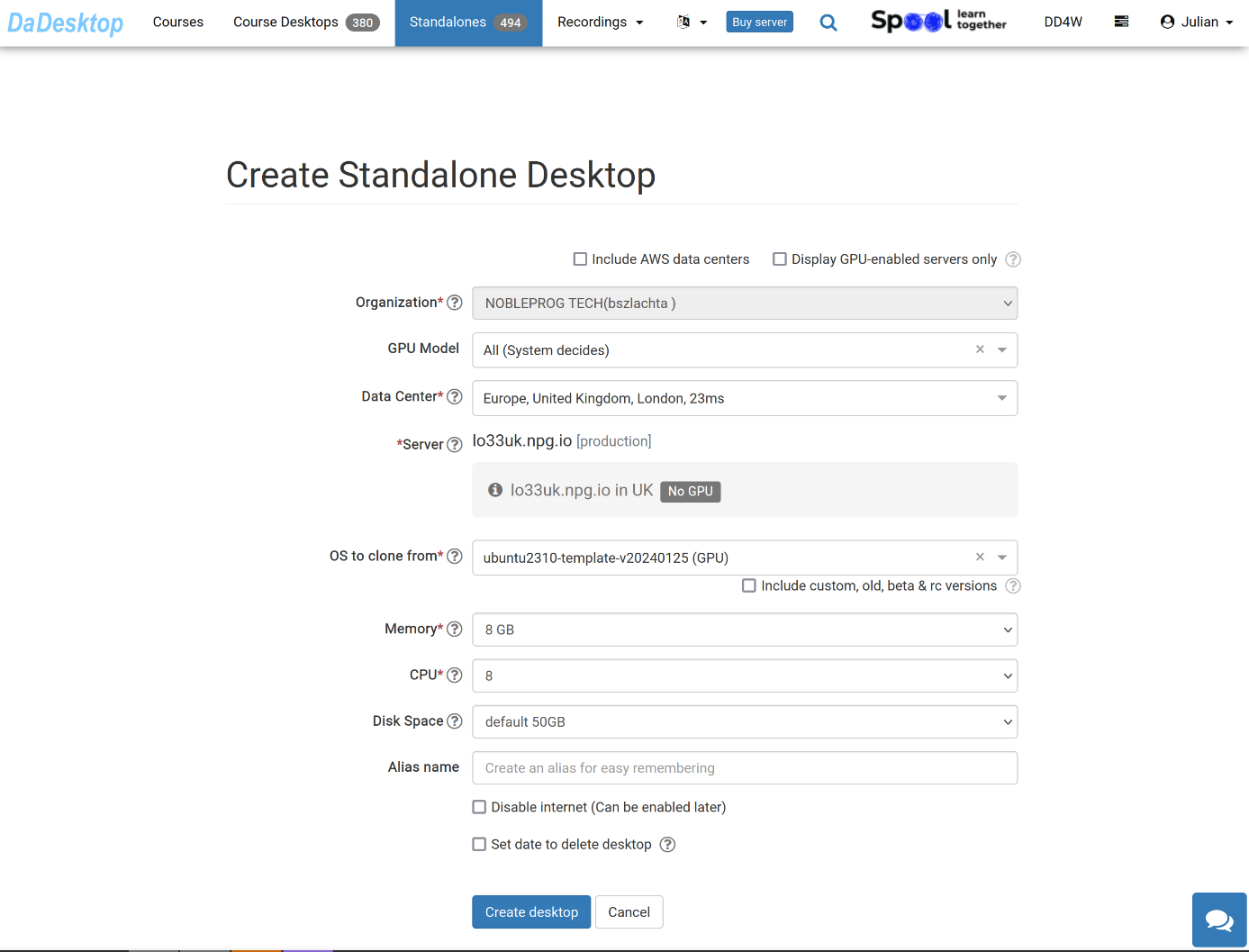
Below is a detailed explanation of each available field:
-
GPU Model
Specify the desired GPU and type if applicable. Selecting 'Display GPU enabled servers' filters the list to show only servers equipped with available GPUs -
Datacentre / Server
Select the datacentre region and specific server that is geographically closest to your location -
OS to clone from
Several Operating Systems are available for selection.
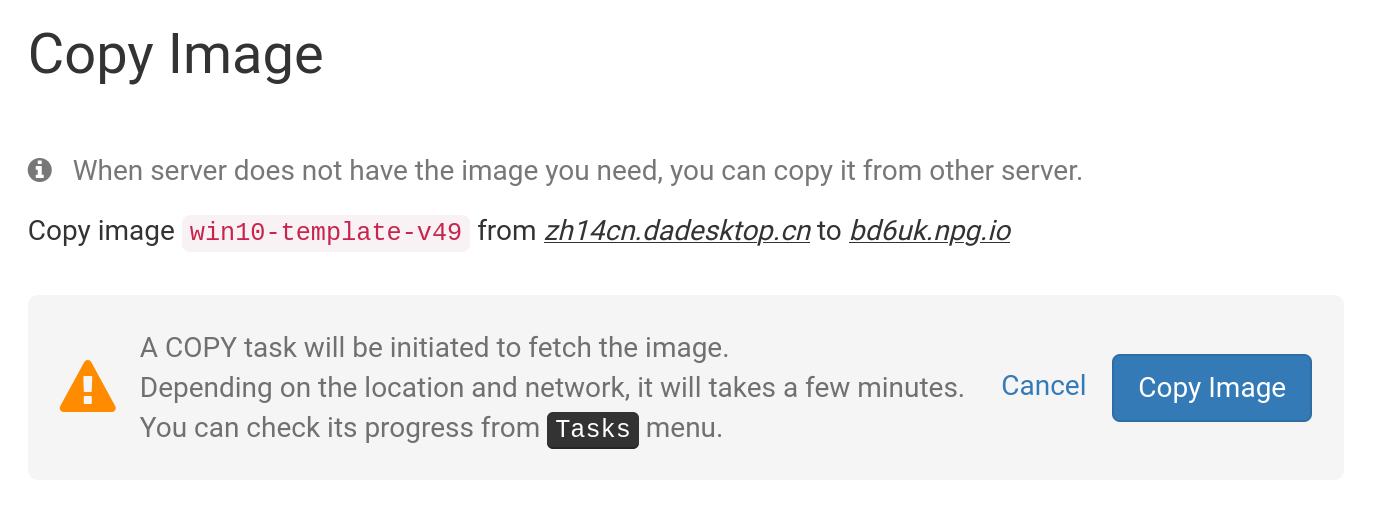
If a template is marked 'Copy Required', it is currently available but must be copied to the specific Server before deployment. Typically, only Windows OS options may involve additional charges. -
Include Custom, RC, and Old Versions
DaDesktop maintains OS templates through regular updates. However, should you encounter issues with the latest release, opting for a previous version may be a viable alternative
-
Memory
Define the maximum memory allocation for the desktops. Note that these allocations are subject to server resource limits by default, which can vary between servers. To request an increase in these limits, please reach out to us via Support Chat. -
Label
You may assign an Alias if desired, allowing for a simpler, more recognizable label for your standalone instance
Selecting the OS Template for Cloning
You have several options regarding which Operating System Template to utilize.
Available choices include Windows or various Linux distributions, such as Ubuntu, Debian, and Almalinux.
Pre-built templates, often identified by version numbers (e.g., V51), can be deployed directly.
Additionally, we now provide the option to construct fully up-to-date Linux templates. These 'Build New' templates utilize a distinct build process that leverages Linux sources alongside a script implementing essential DaDesktop customizations. This approach ensures the template is always current, secure, and streamlined for deployment and maintenance.
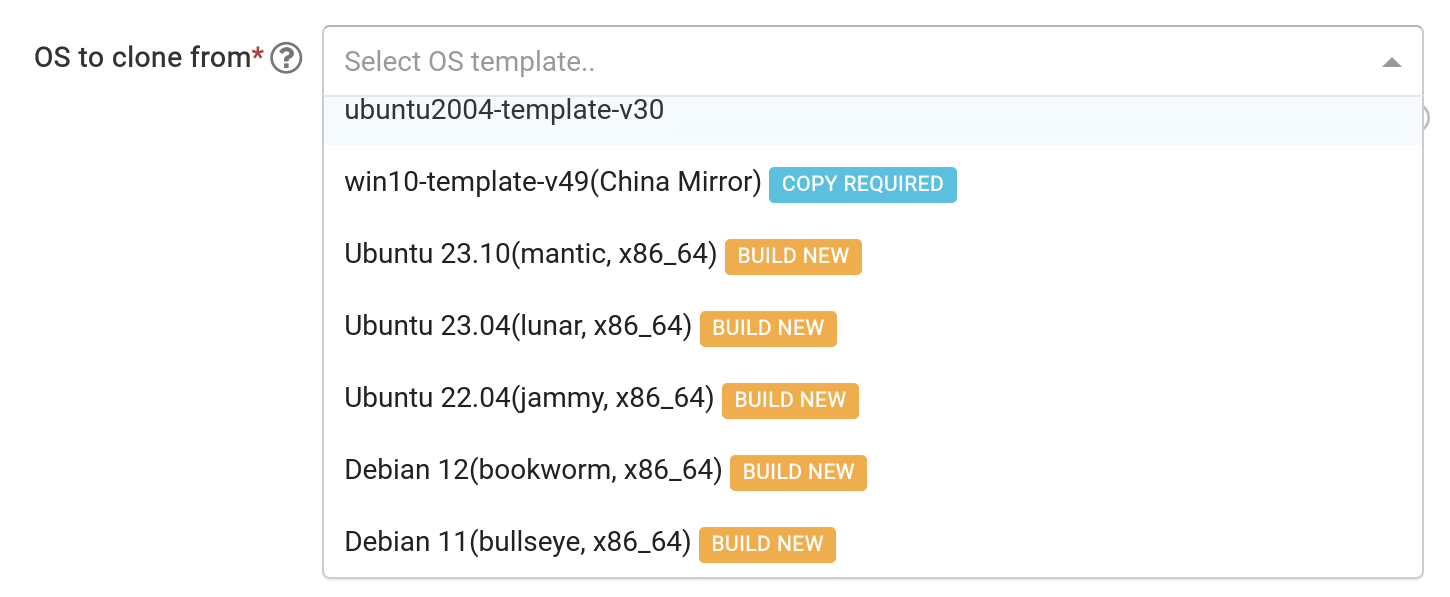
Template Construction Process
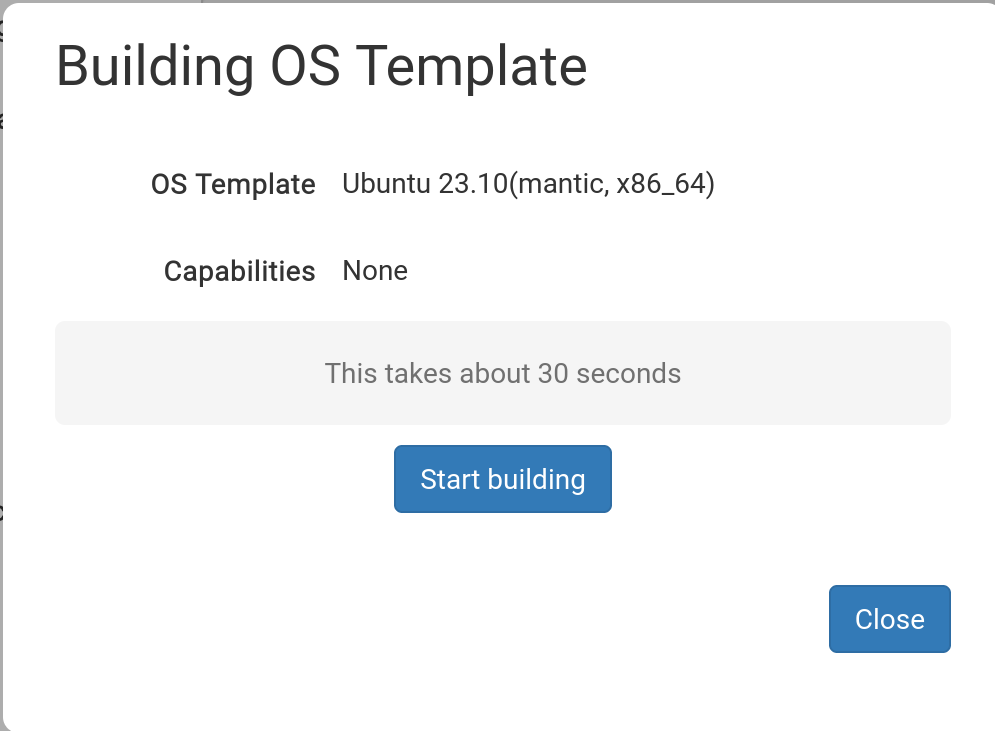
Once you have selected the appropriate template, a notification will appear as shown below.
Select 'Start Building'
The system will proceed to build the standalone environment. Please note that this process can exceed 30 seconds; if it appears to pause, kindly allow additional time for completion.
Template Ready for Use

With the template successfully built, you may adjust any remaining settings as needed, then select 'Save and Create Desktop'.
The creation of your Standalone is now in progress. This stage is typically swift, taking significantly less time than the initial template build.
Your new Standalone is now operational. In the example provided, it is identified as 'julian-6iqm', though you are free to assign a more descriptive label if you prefer.
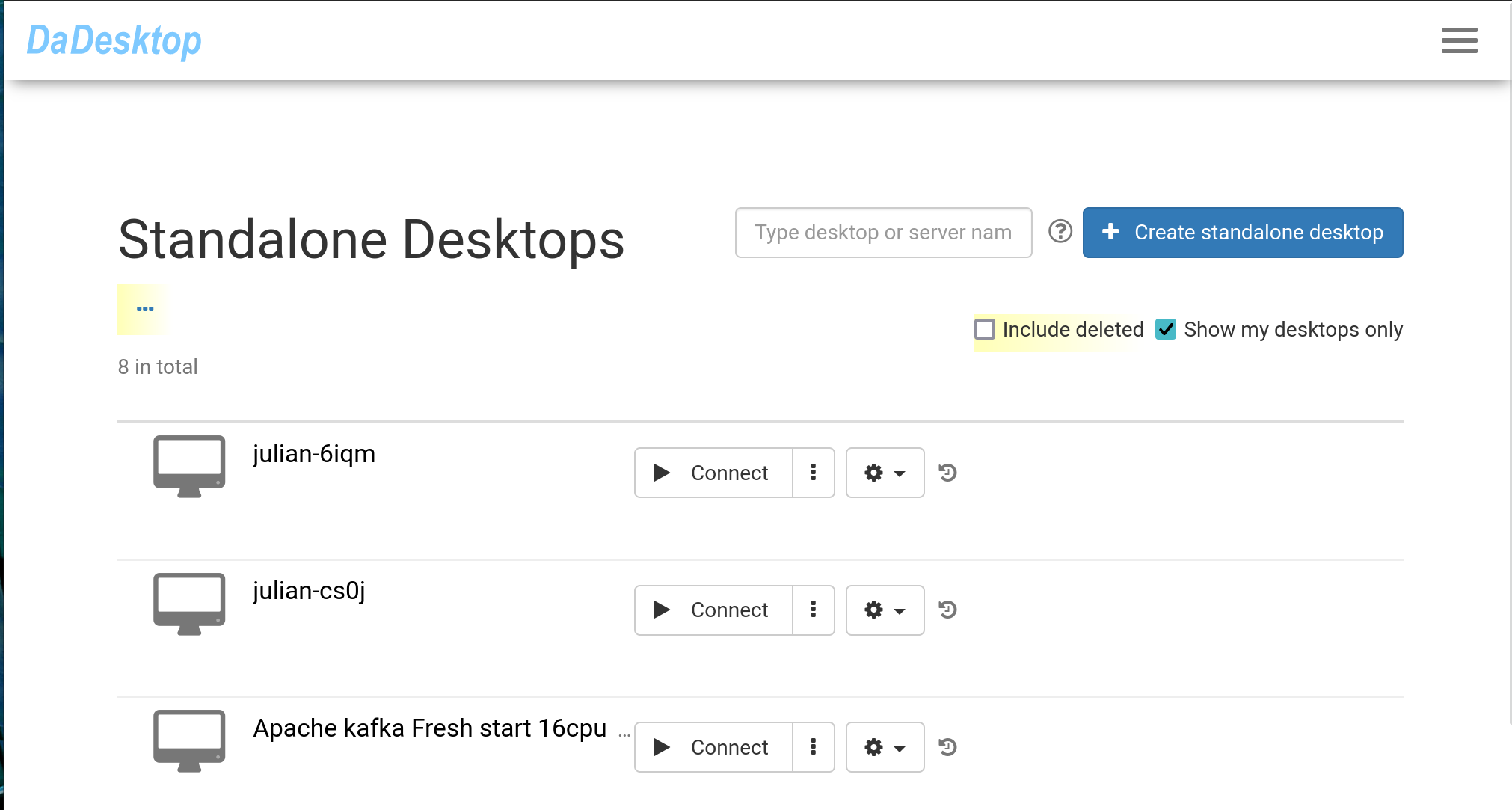
Select 'Connect' to launch and access your Standalone machine.