Oracle Server Troubleshooting and Resolution
When built on a Fresh Start machine using DaDesktop (DD), most applications function flawlessly. However, certain applications may encounter issues due to the cloning process, requiring additional configuration steps to ensure stable operation.
System Specifications
-
Oracle Database 19c (other versions may exhibit similar behavior)
- Installed via the Windows 10 template
Fresh Start Configuration Notes
-
Please note that this is a general guide for resolving issues with this application in the Fresh Start environment. Specific steps may vary depending on your unique setup and configuration.
-
Overview – Apply the following fixes on the Fresh Start machine. While the machine’s hostname is used initially, the cloned instances will adopt new machine names, rendering the original hostname irrelevant. Instead, the configuration should reference 127.0.0.1 (localhost). Furthermore, extraneous database Listeners often complicate the setup and should be removed, as demonstrated below.
Resolution Procedure
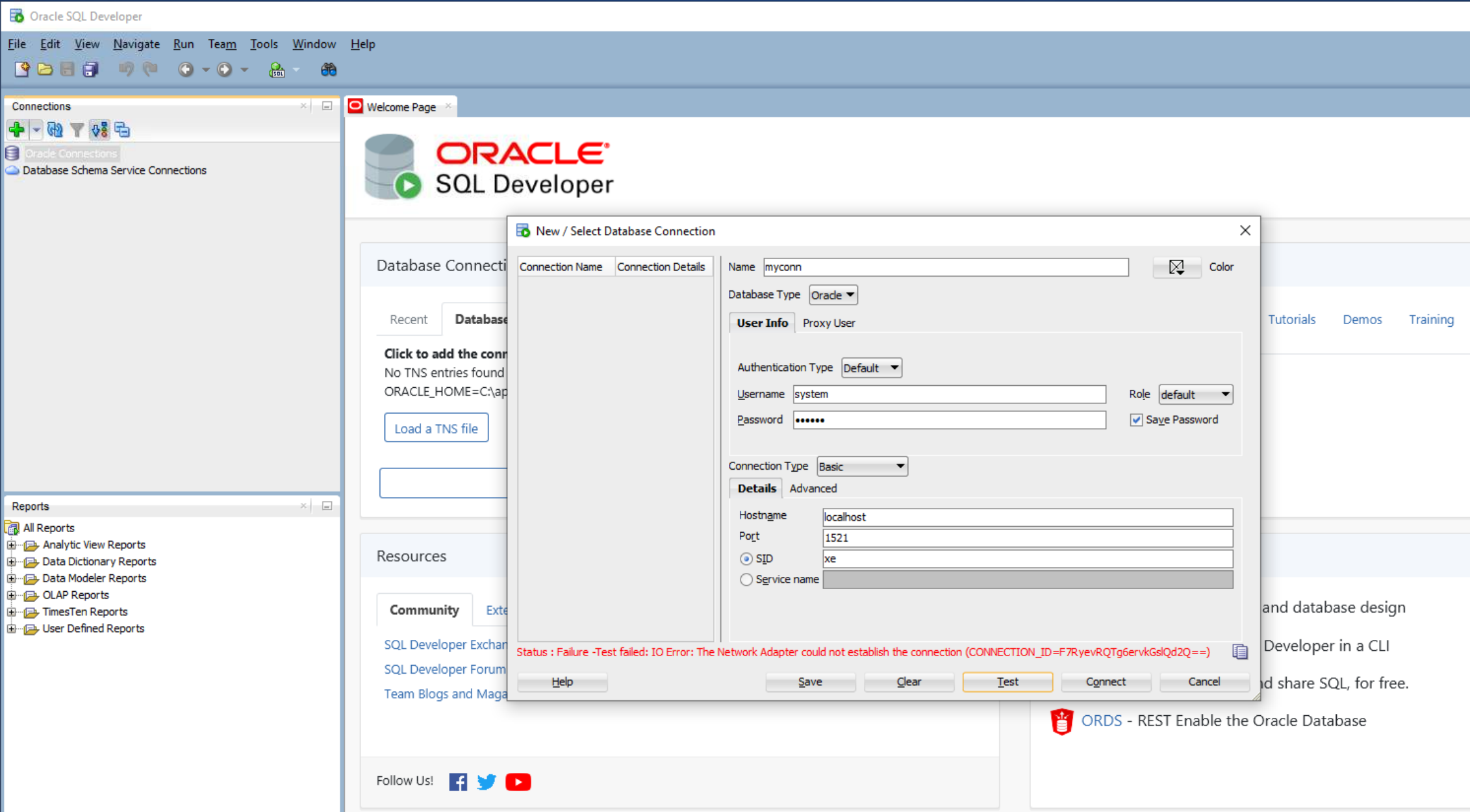
1. The image below illustrates a database connection network failure when using the Oracle SQL Developer application.
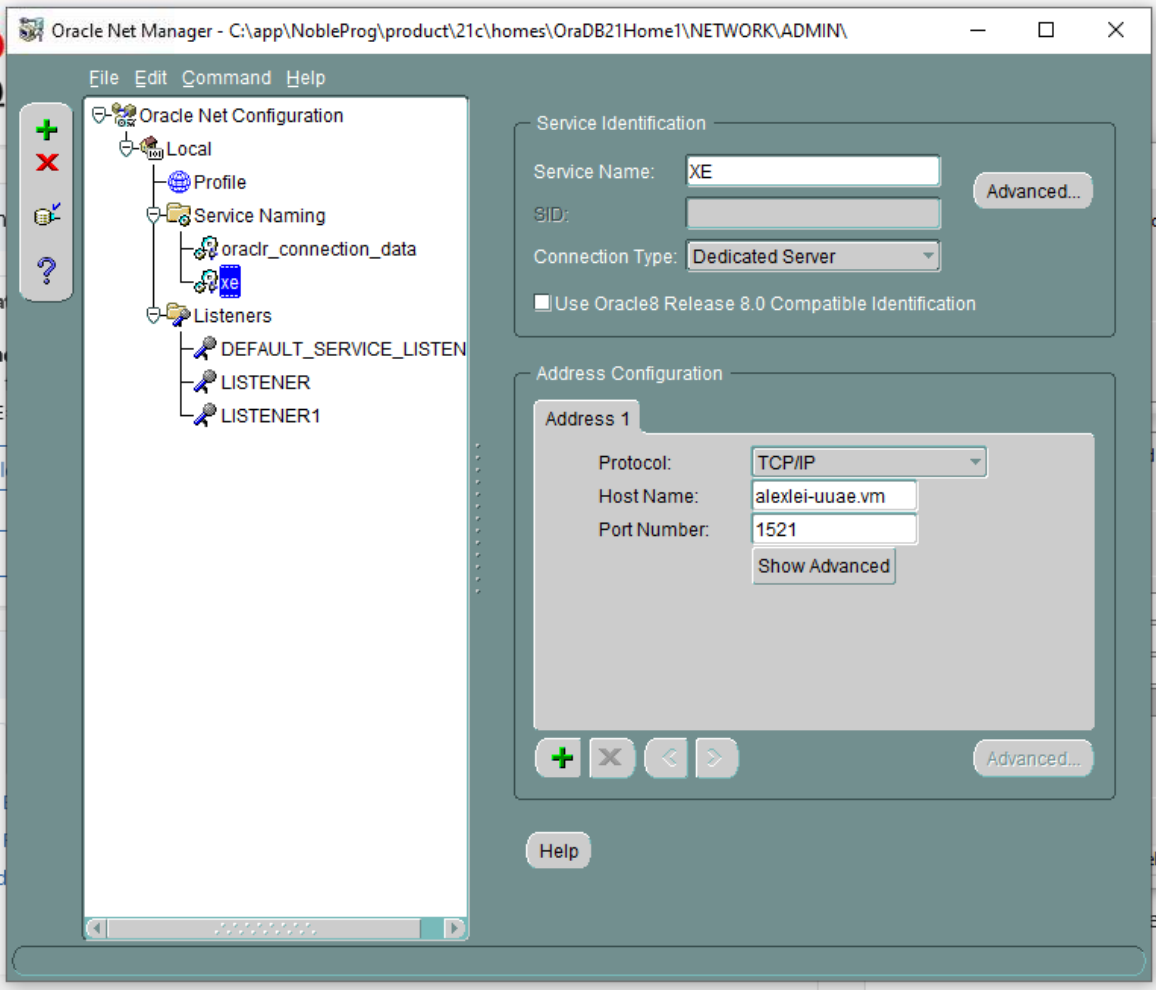
2. Launch the Oracle Net Manager application.
The XE service details are displayed, including the original host information (in this instance, alexei-uuae.vm).
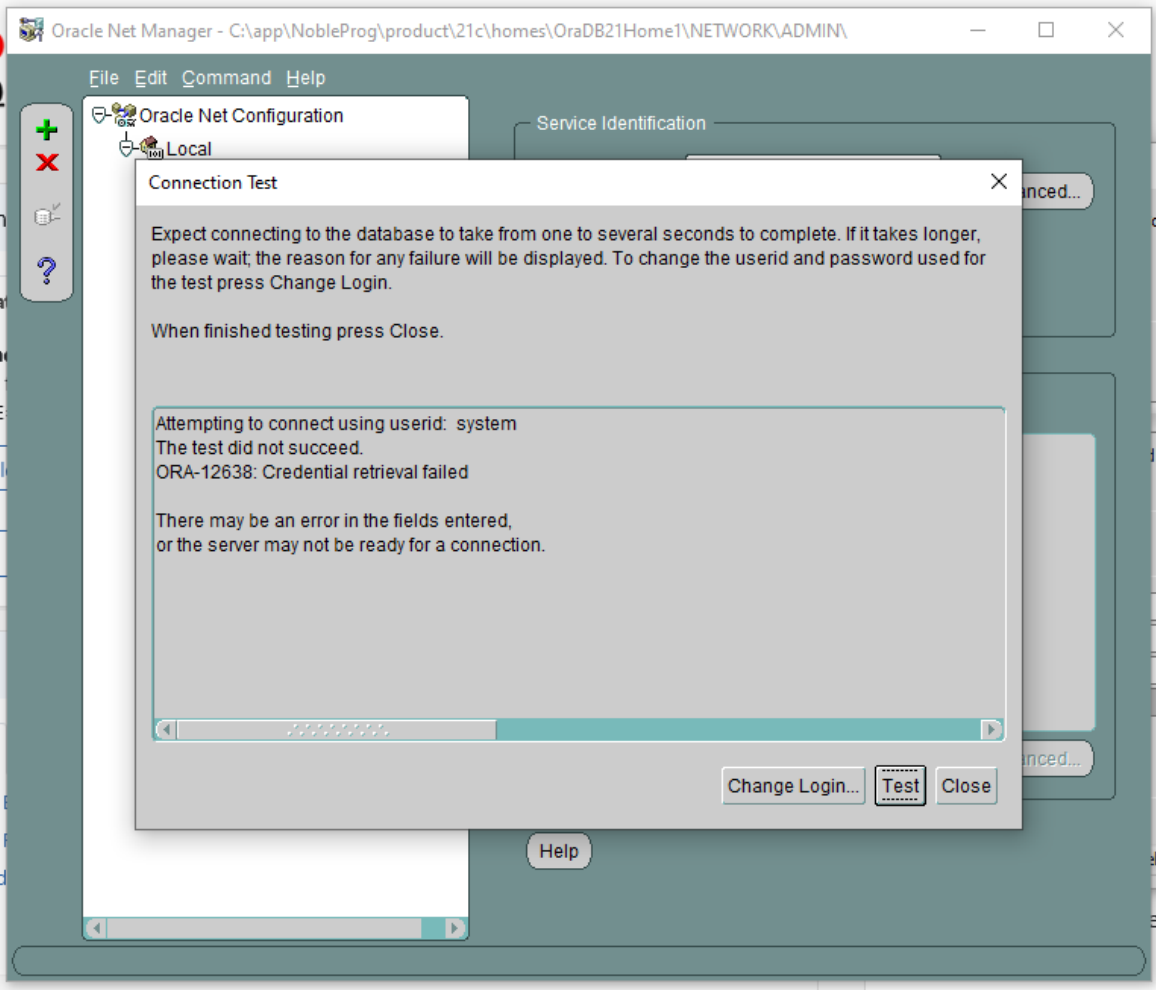
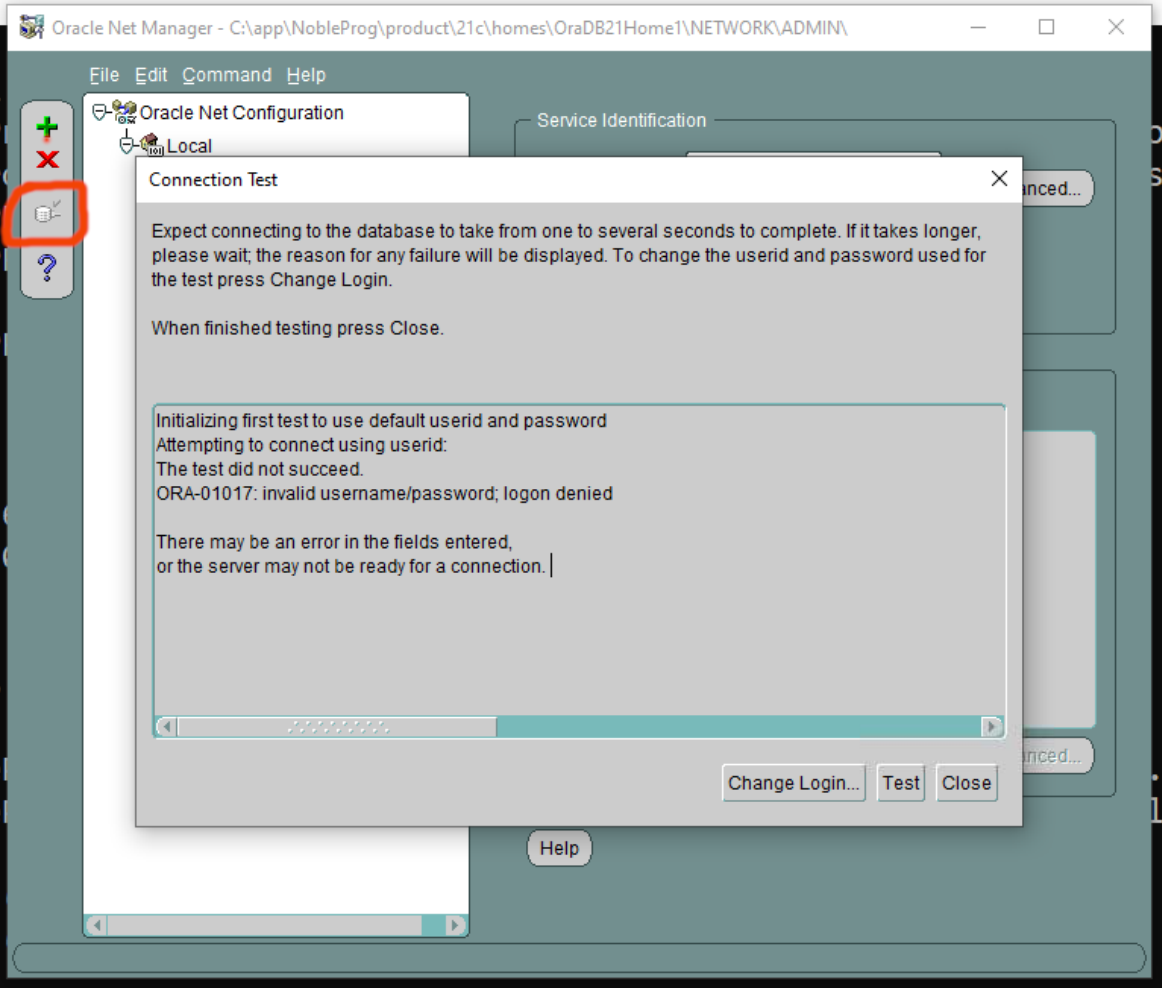
3. The connection test fails (after entering userid=system and the password).
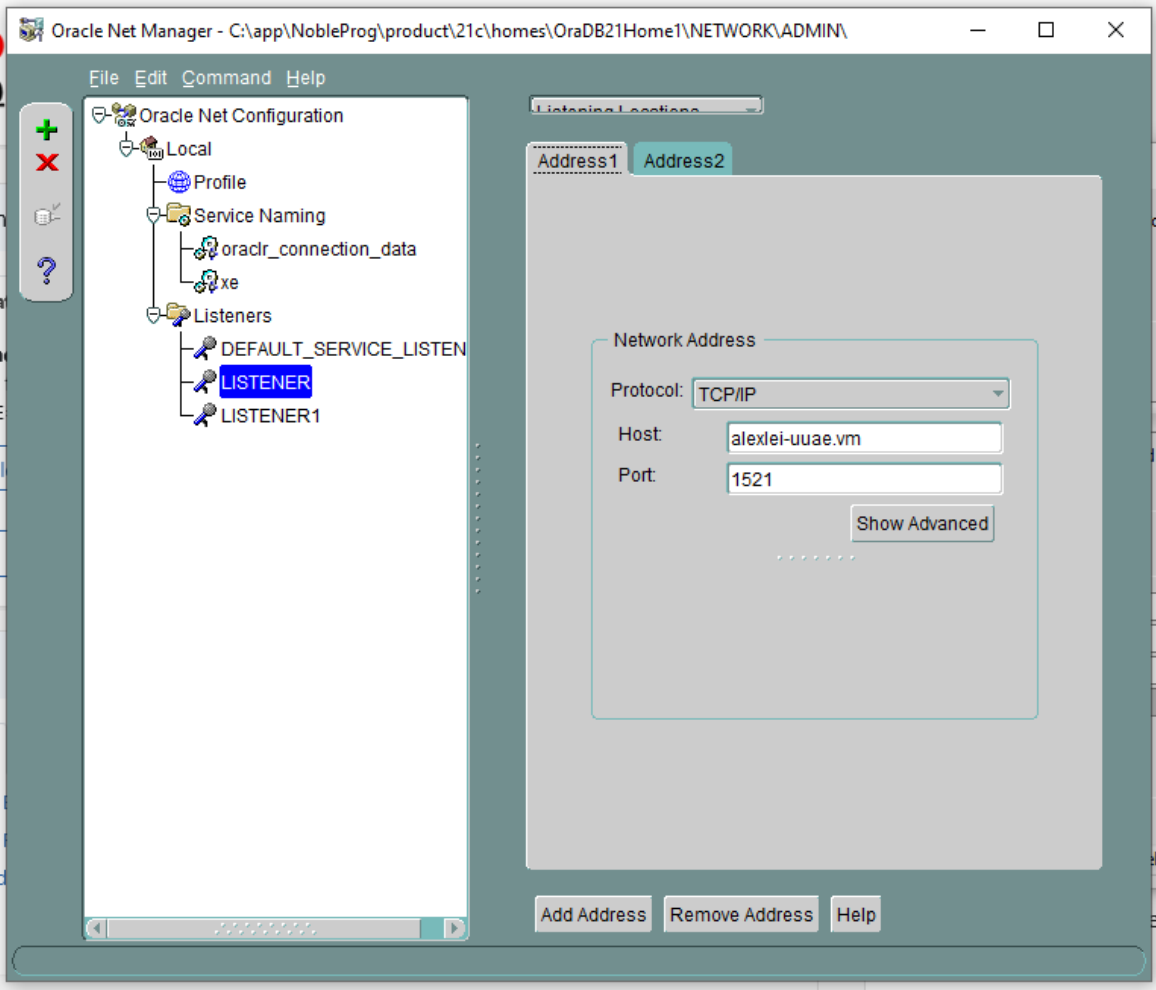
4. Navigate to Oracle Net Manager > Listening Locations > Listener.
The host details display the original hostname 'alexei-uue.vm', which will need to be modified.
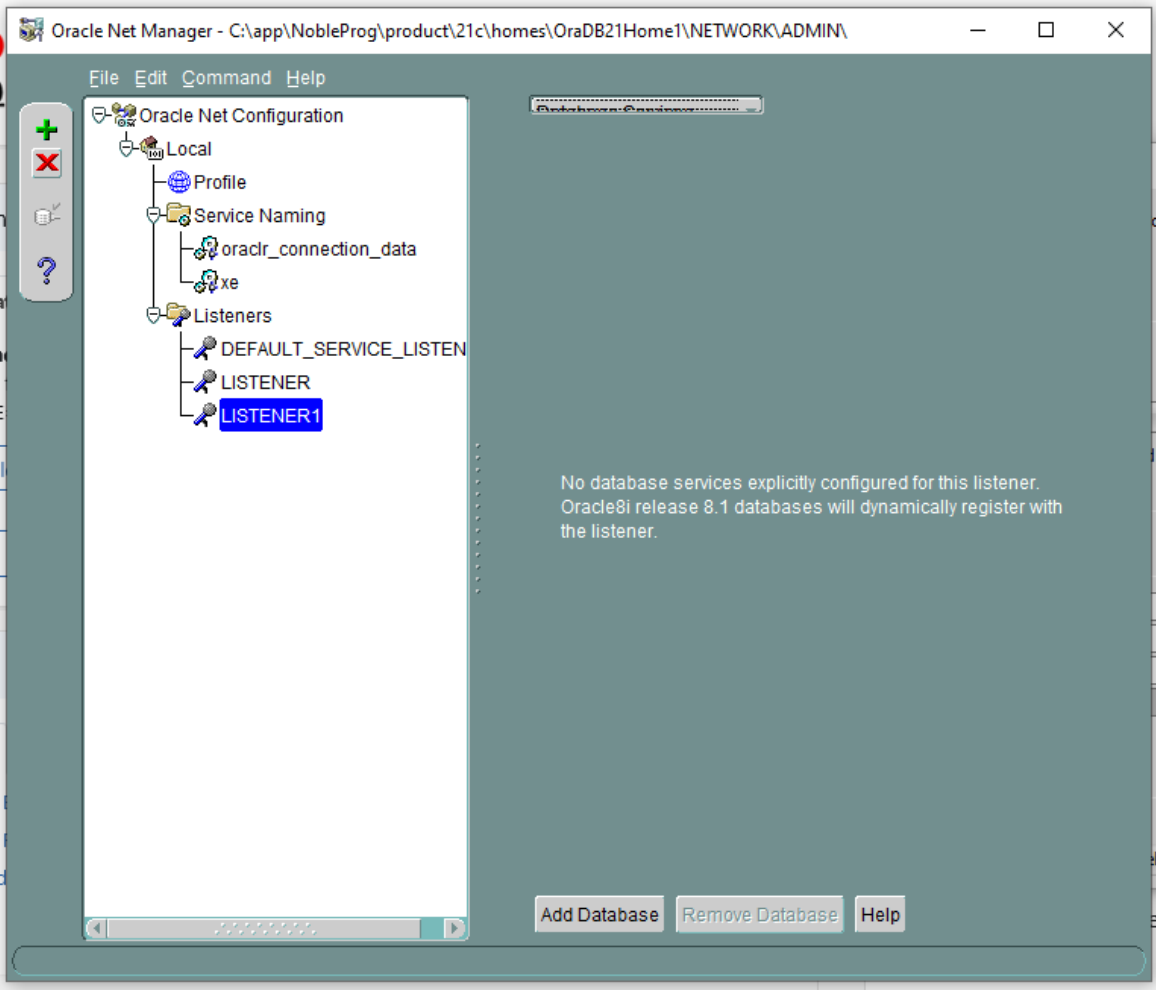
5. No databases are currently configured to work with LISTENER1. Inspect any Listeners that lack configured database services. If found, remove that specific Listener.
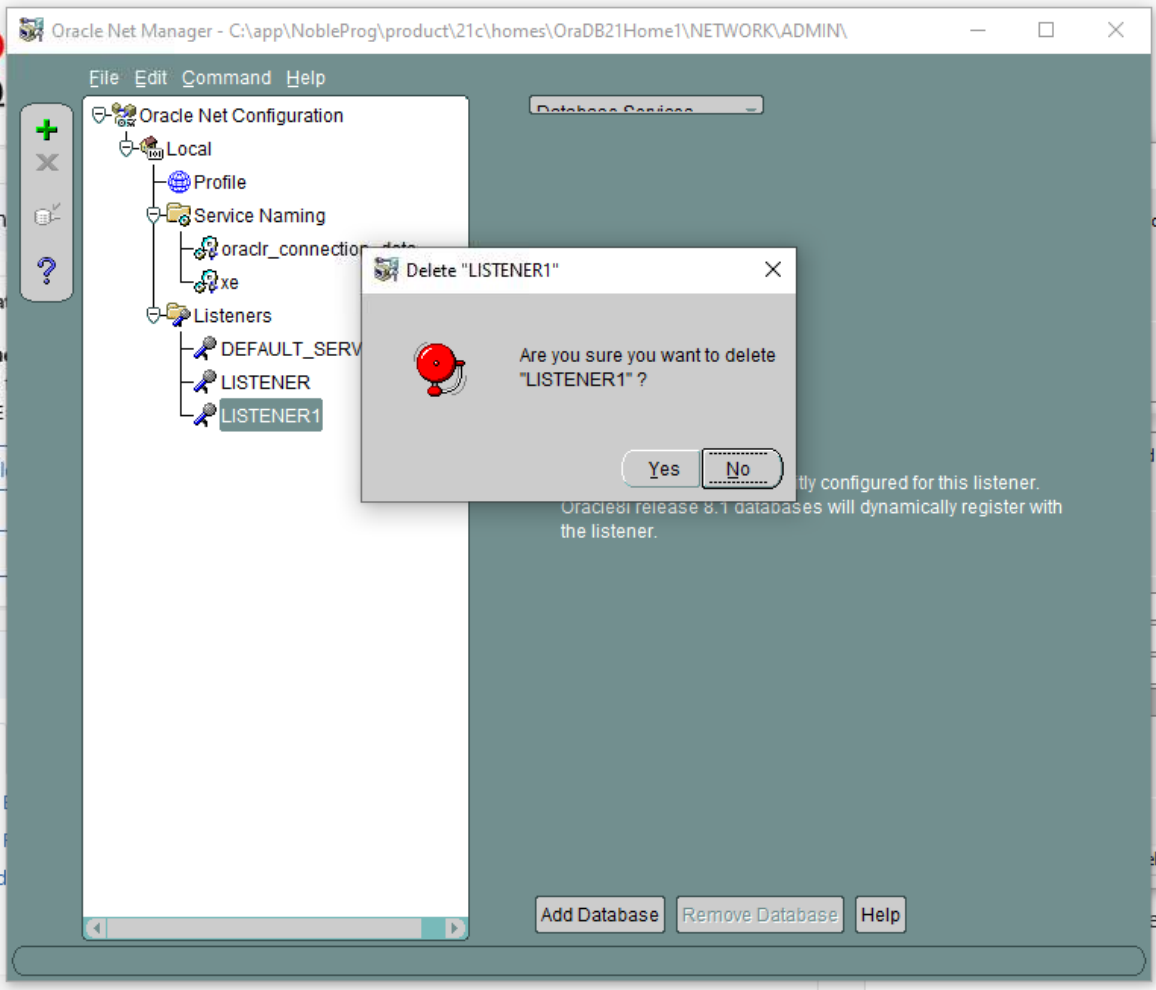
6. Therefore, delete LISTENER1 and confirm the action. Note that this is an example based on our specific setup; while not always applicable, it serves as a practical demonstration.
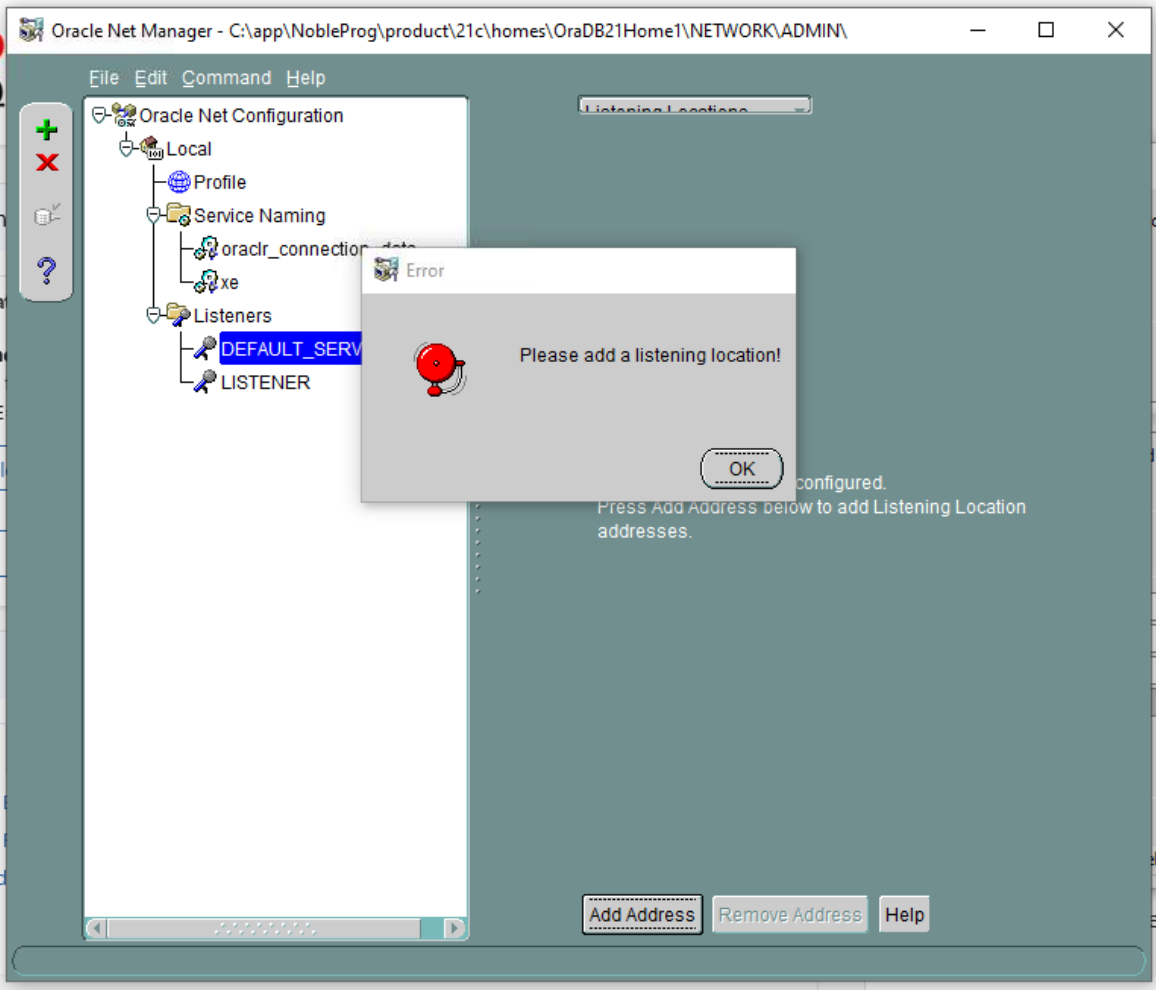
7. DEFAULT SERVER LISTENER – Review each Listener individually. In this case, no listening location is available.
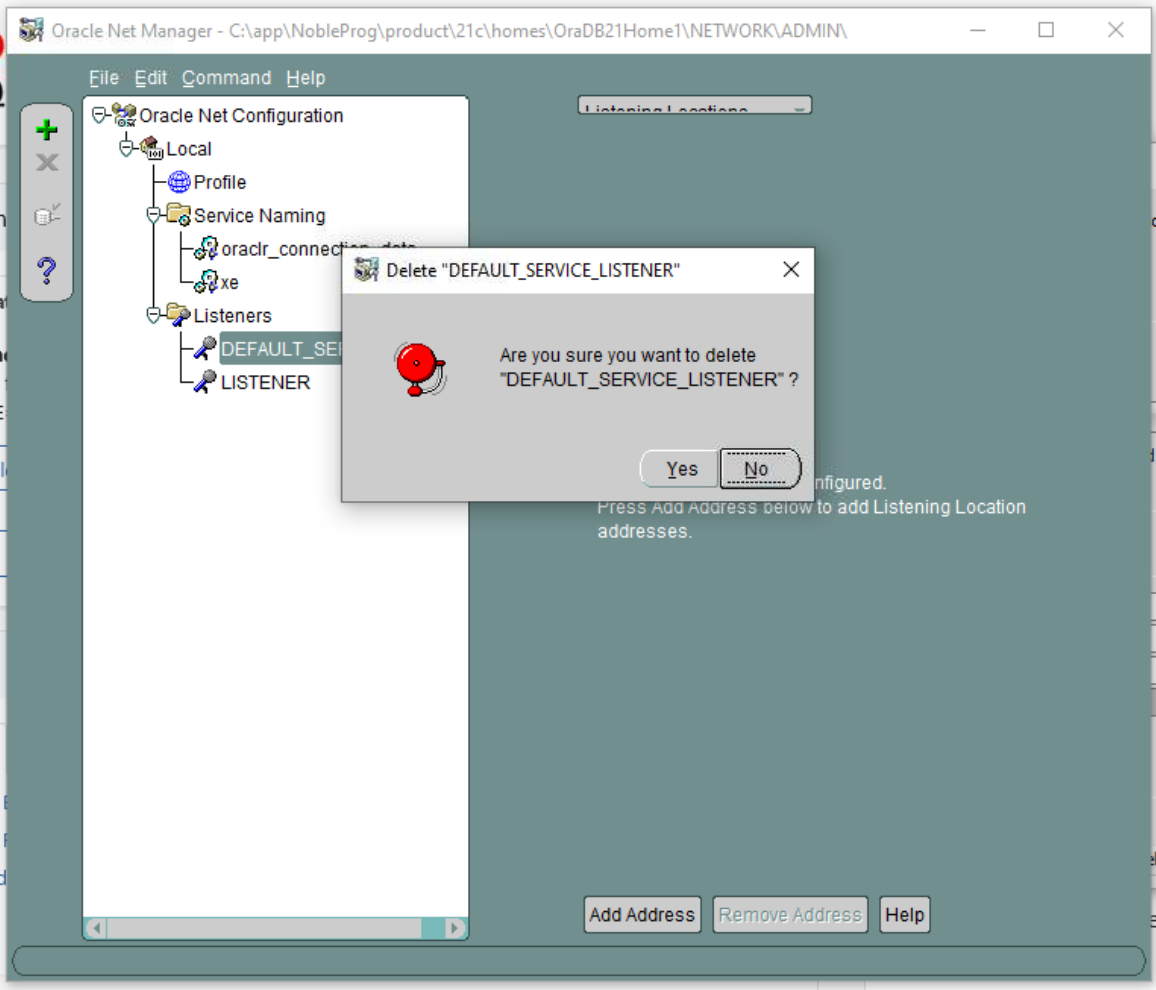
8. Consequently, delete the DEFAULT SERVER LISTENER.
9. For LISTENER (the only one remaining), observe the existing VM hostname. This value requires modification as it will change upon cloning.
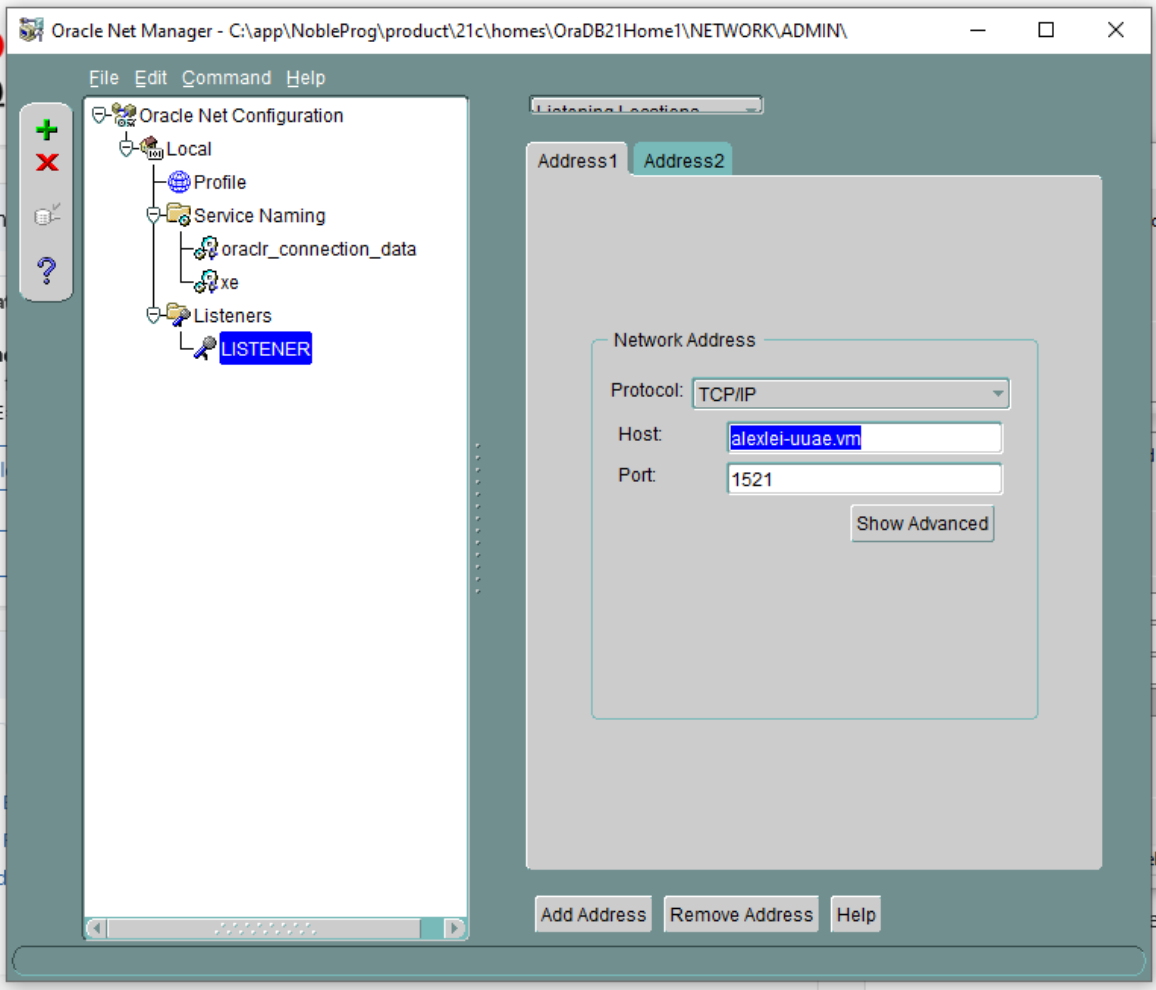
10. Update the host from 'alexi.uuae.vm' to 127.0.0.1, keeping the port number unchanged.
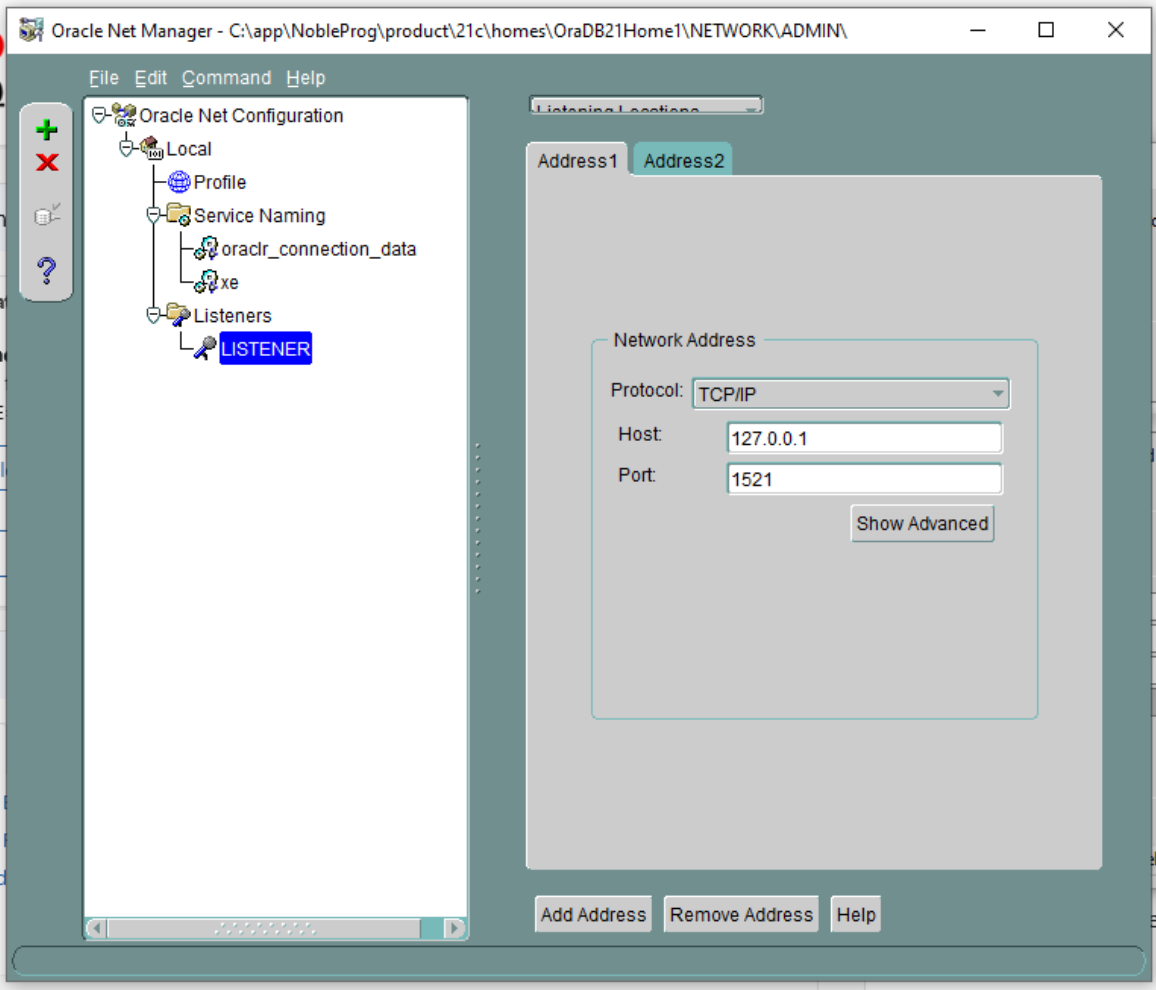
Next, configure the existing database
11. Set the SID to XE and the Global Database Name to xe.local
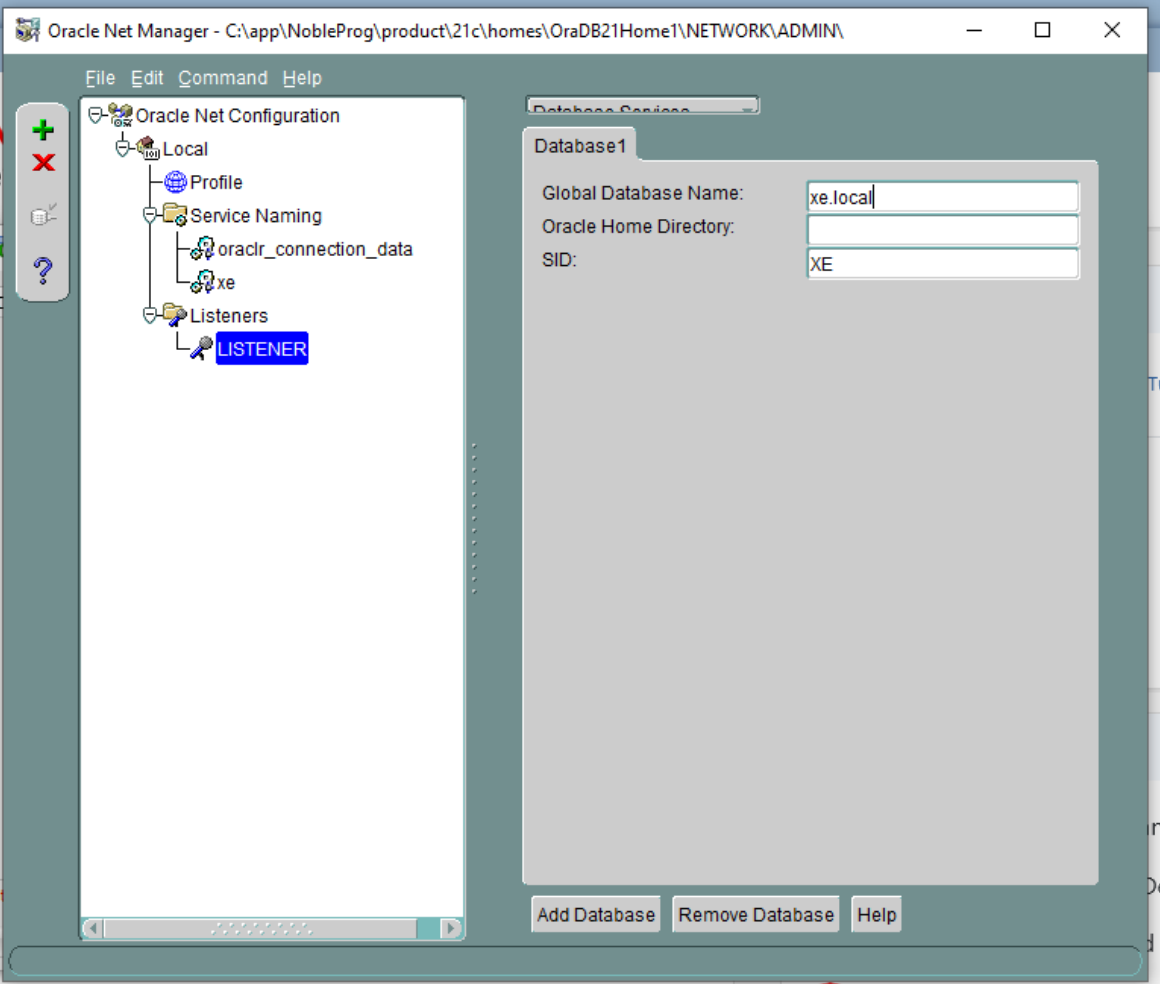
12. Save the network configuration and close the application.
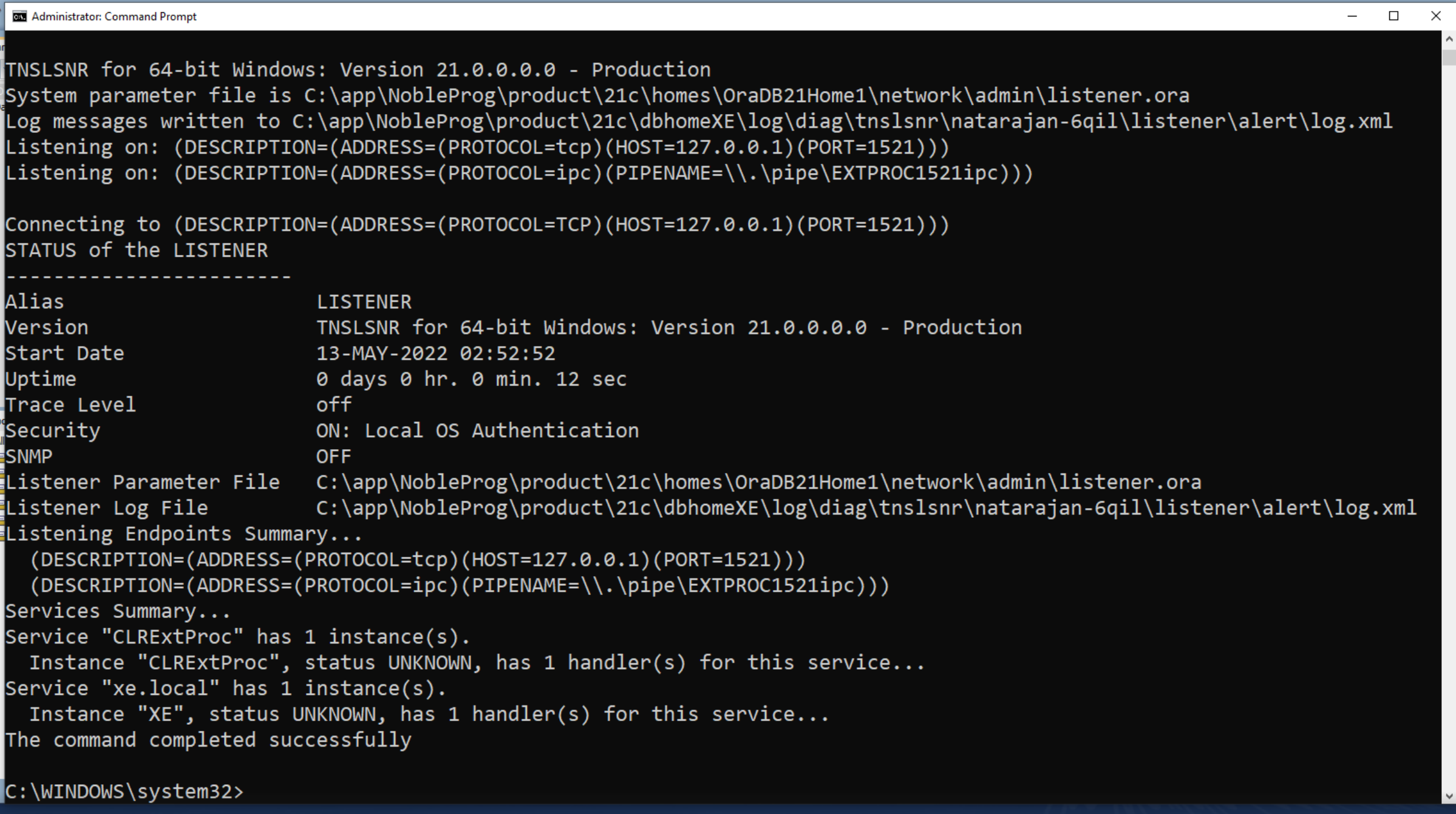
13. Open a Command Prompt window to restart the listener service.
Enter ‘lsnrctl status’, then type 'lsnrctl stop'.
Type 'lsnrctl start'.
Launch Oracle Net Manager again.
14. Remove alexei-vm from the Service Naming > xe section.
15. Update the host to 127.0.0.1
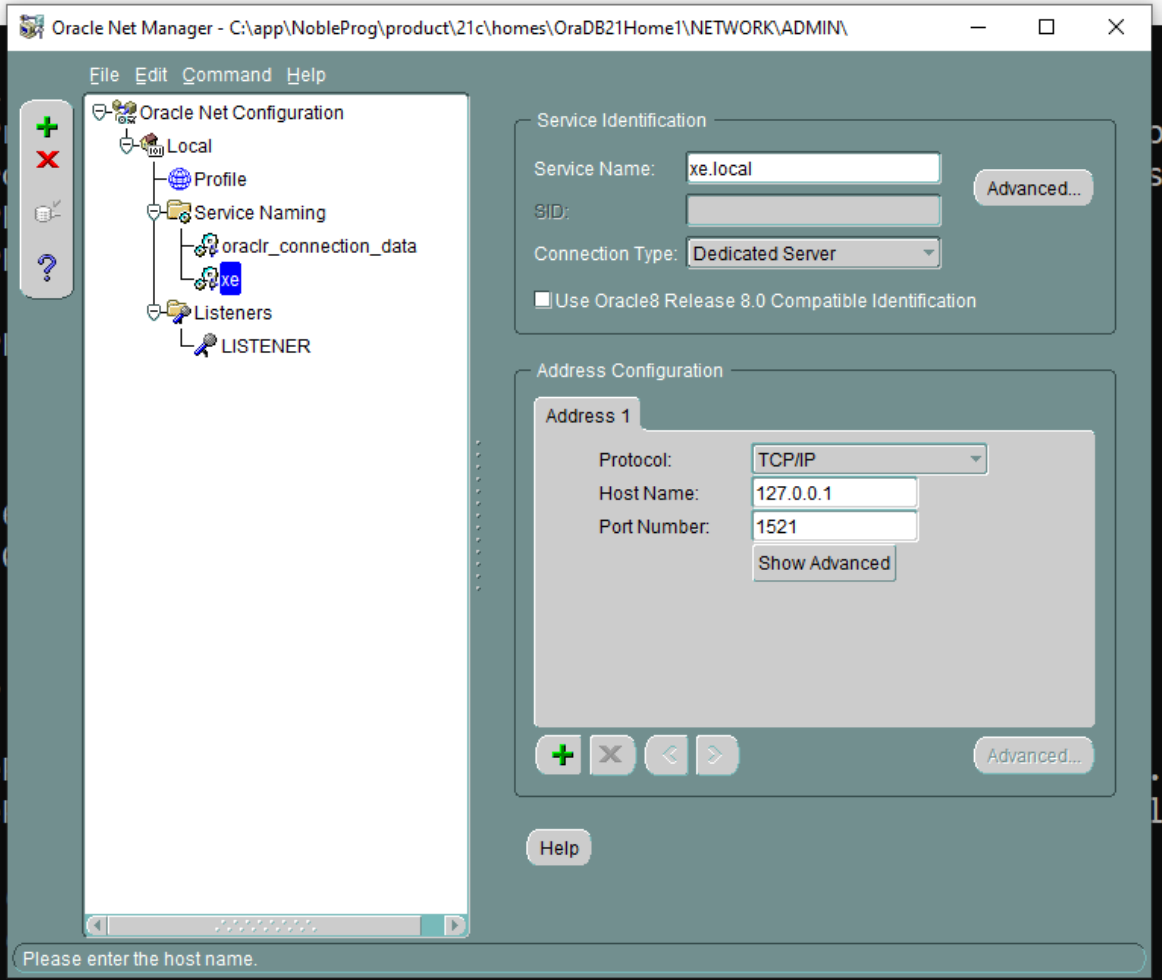
16. Save the network connection.
17. Perform a Connection Test. Click the small button shown in the image below to initiate the test.
18. Update login credentials. Change the username to ‘system’ and enter the corresponding password.
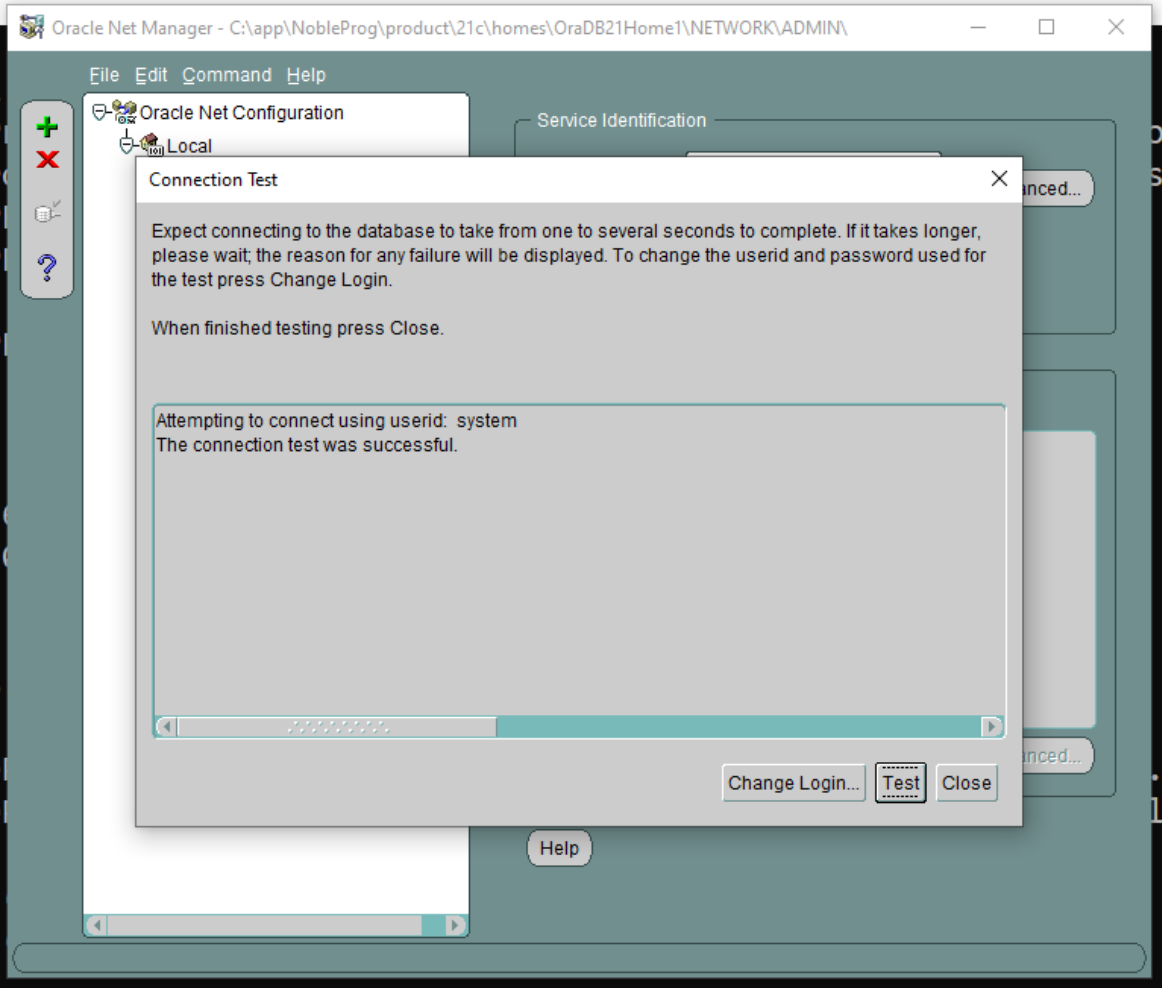
Save the network connection if necessary.
19. Return to the main Oracle SQL Developer application. Re-run the Connection Test.
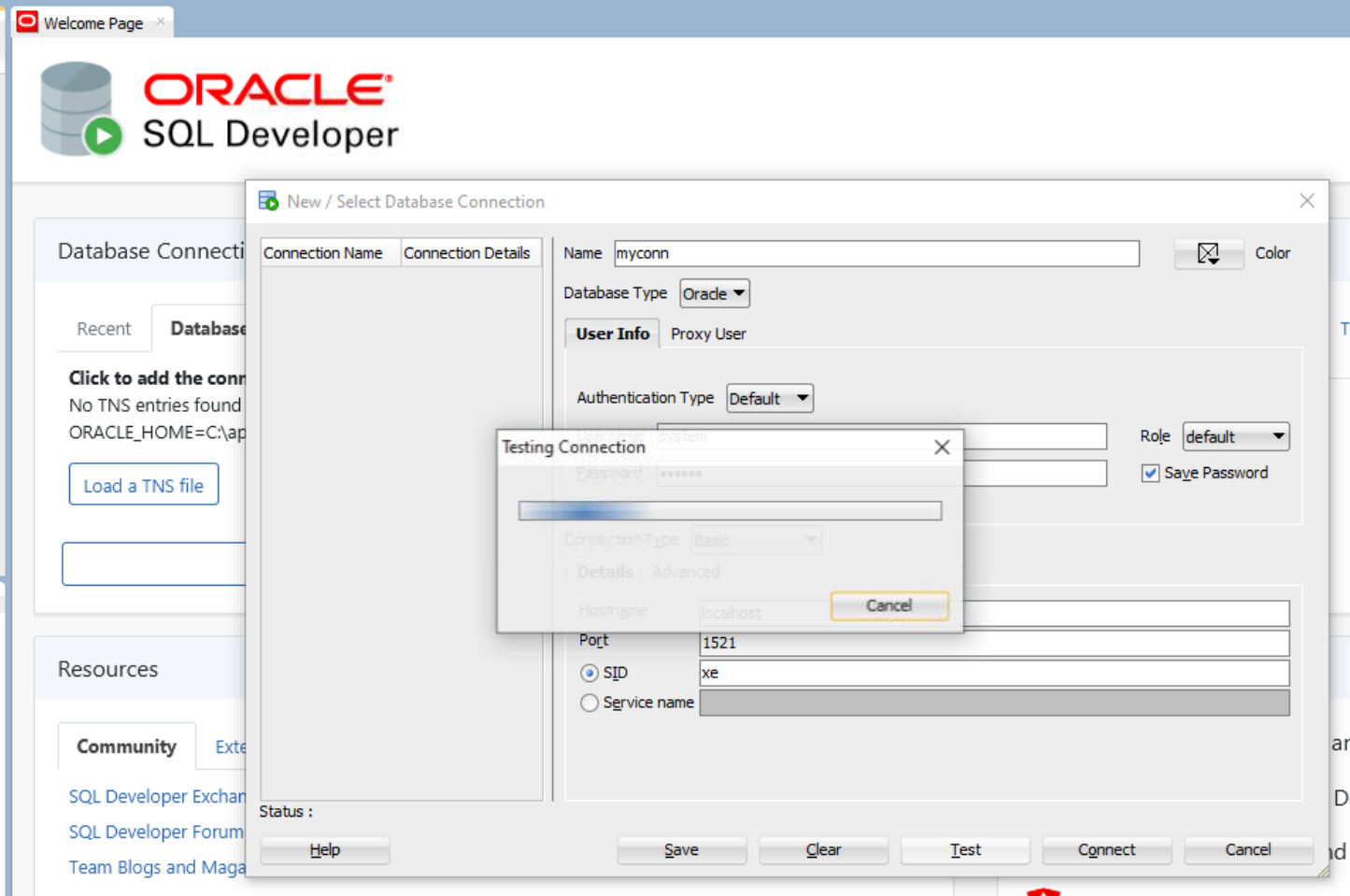
20. Assuming a successful connection, navigate to Connections on the left-hand side of the screen. Expand Oracle Connections to verify that database tables are displayed as expected.
21. Proceed with the necessary Fresh Start machine configuration and clone the machine to Trainer and Participant devices.
The Oracle Database server should now operate correctly on Trainer and Participant machines.
If issues persist, please contact DaDesktop Support via the chat application; we would be pleased to assist you.