Recording Management (Beta)
Within the Recordings tab of a course, you can now manage the videos and recordings associated with the course page. Although this feature is currently in its Beta phase, it offers the capability to create Modules, as well as edit and trim videos, among other functionalities.
Recording Management Button
Inside the Recordings tab, a prominent blue button labeled "Recording Management" is displayed on the left side of the page. As you conduct sessions, your recordings will begin to appear here, categorized as Trainer, Training Room, or Participant.
If you have created recordings that are not yet visible, please use the refresh button located next to the "Recording Management" button to update the view.
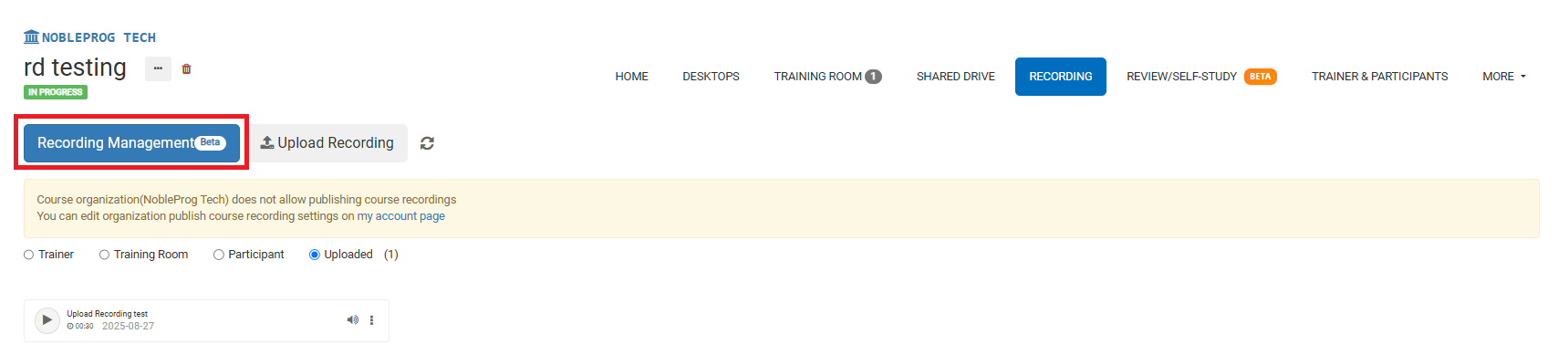
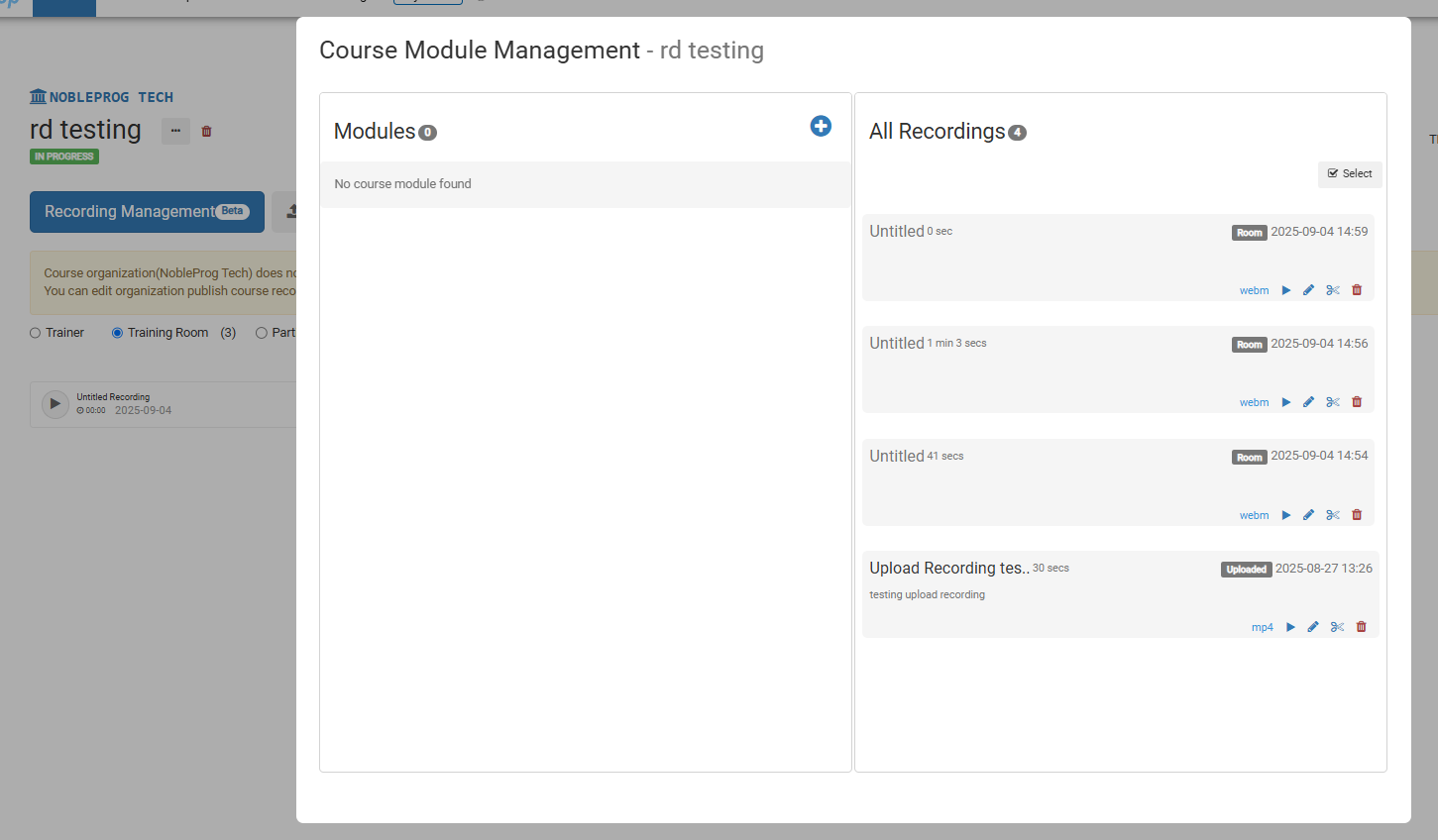
Selecting this button will open a new screen popup.
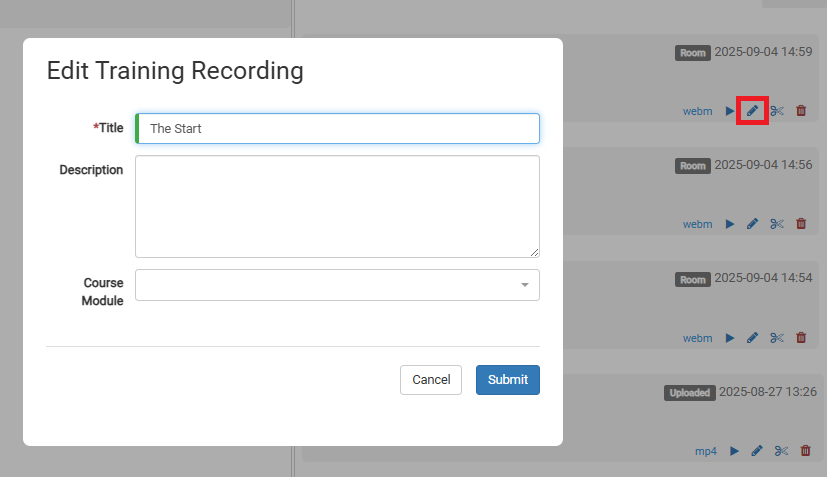
To edit a specific video, simply click the pencil icon associated with that video.
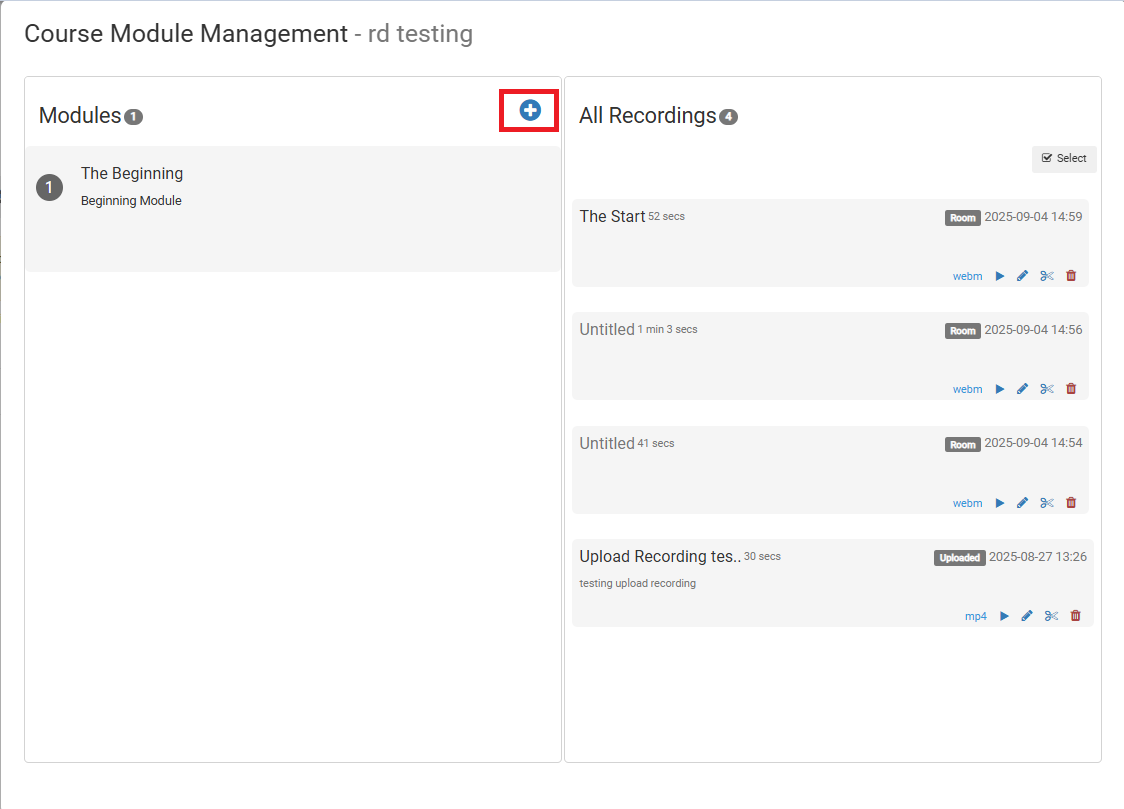
You can create Modules by clicking the (+) icon found under the Modules section.
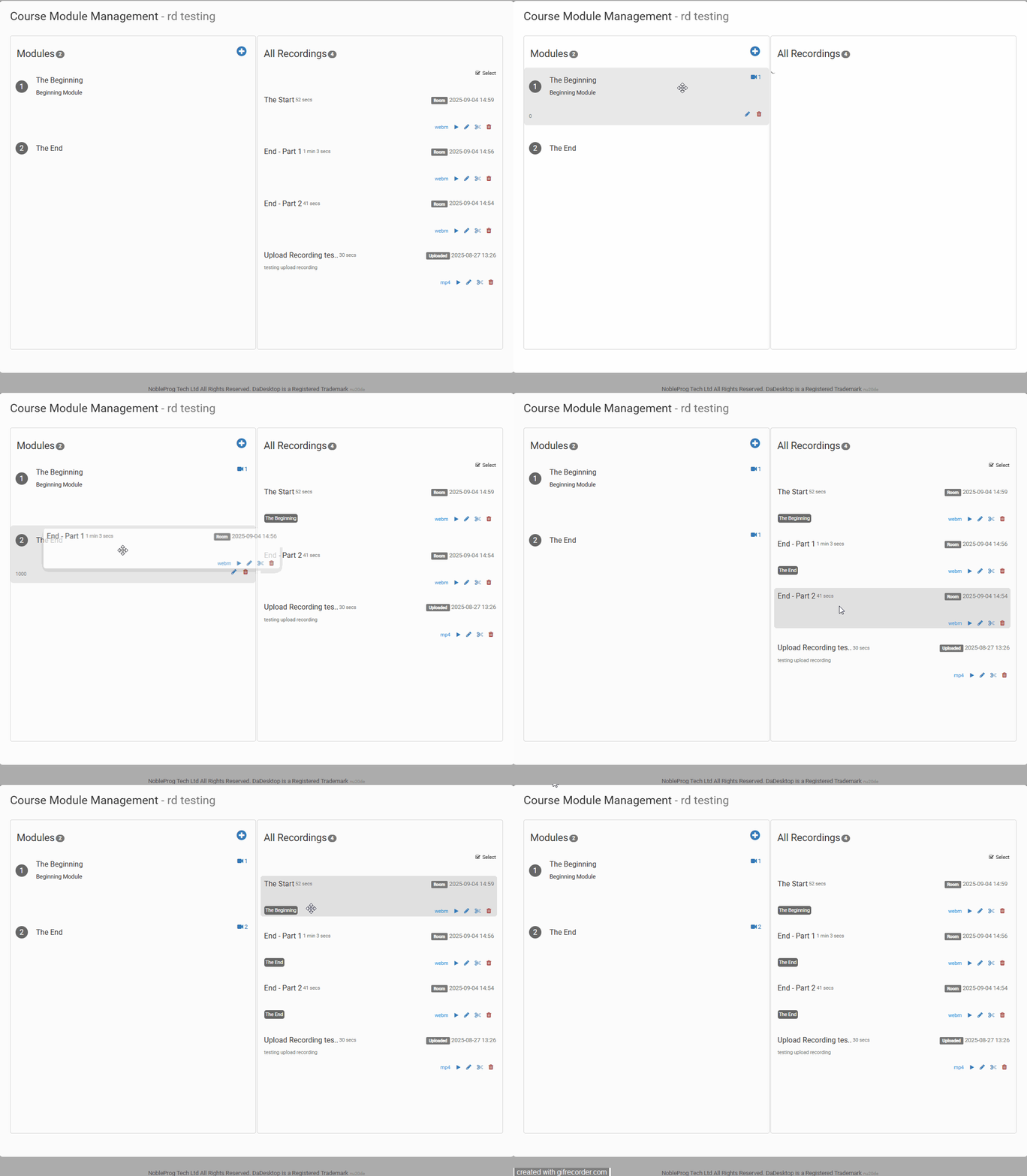
Once Modules are established, you can organize videos by moving them under their respective Module. This can be achieved by dragging and dropping the videos.
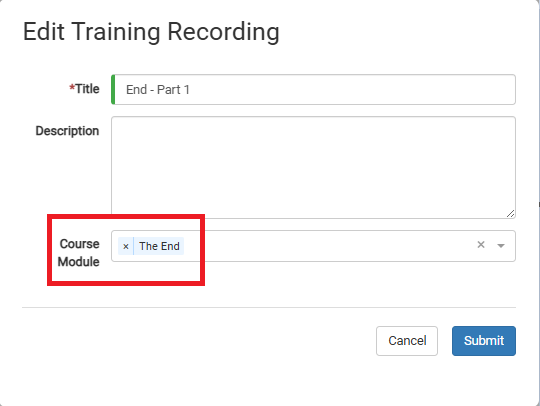
Alternatively, you can manually assign a video to a Module while editing the video's details.
Video Editing
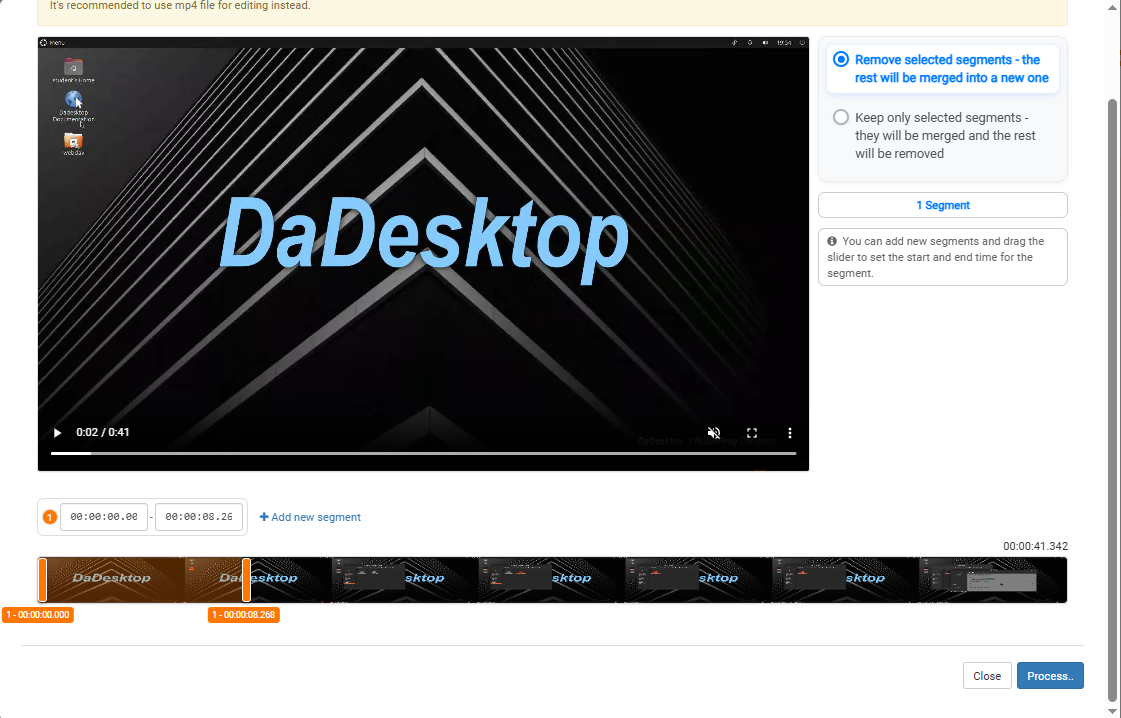
Basic video editing is supported. If your recording contains idle moments or segments where you are struggling to locate a file, and you prefer not to include these in the final demonstration, you can click the "scissor" icon on the video to perform minor edits and refine the content.

This action opens the Edit/Cut Recording window, allowing you to scrub through and trim the video. Once you are satisfied with the modifications, process the video to render your changes.