Adjusting Disk, CPU, and Memory Resources
Trainers can modify the resources initially allocated to the Fresh-Start Desktop. This capability is particularly useful when you determine that the course demands higher CPU, memory, or storage capacity to accommodate additional programs or software.
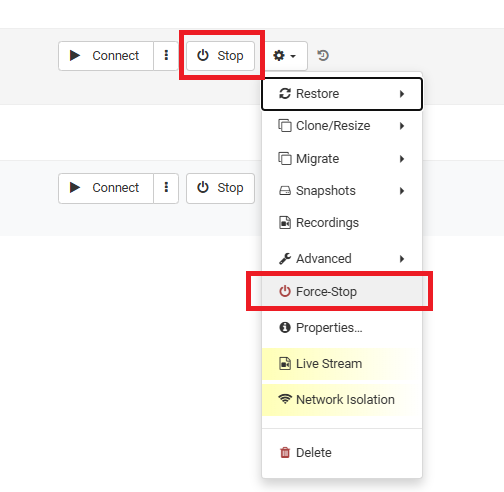
To adjust these parameters, ensure that the Fresh-Start desktop is in a stopped state before making any changes. Access the settings by selecting the gear icon and choosing either "Stop" or "Force-Stop" for the desktop.
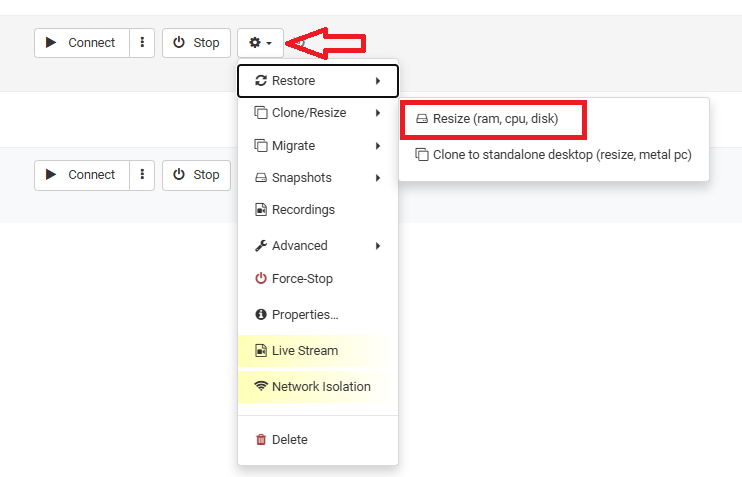
With the desktop stopped, you can now resize the allocated resources. Click the gear icon and navigate to Advanced > Resize (ram, cpu, disk) to proceed.
Selecting this option will display the Resize form, allowing you to re-allocate the necessary resources (CPU, RAM, or Storage) for your desktop. The form specifies the maximum limit permitted for each resource.
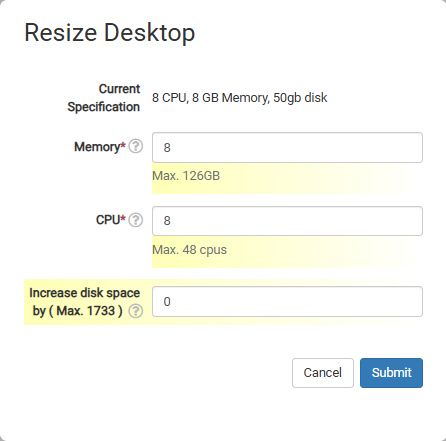
Note that these adjustments will impact the desktop's pricing. It is recommended to allocate sufficient resources to ensure the course runs smoothly.