Managing Deletion Schedules for Standalone Machines
Why should you pay attention to the deletion schedule?
If you are utilizing a Standalone machine to continue working on a lab from a previously attended course, or if you are a Trainer preparing materials, this feature is likely not a concern for you.
However, to ensure efficient use of system resources, automatic deletion is scheduled for standalone machines that remain inactive for over a month. A reminder is sent to you seven days prior to this event.
It is also possible to cancel the scheduled deletion.
Methods for scheduling the deletion of a standalone machine.
- You may specify a deletion date during the creation of a standalone desktop.
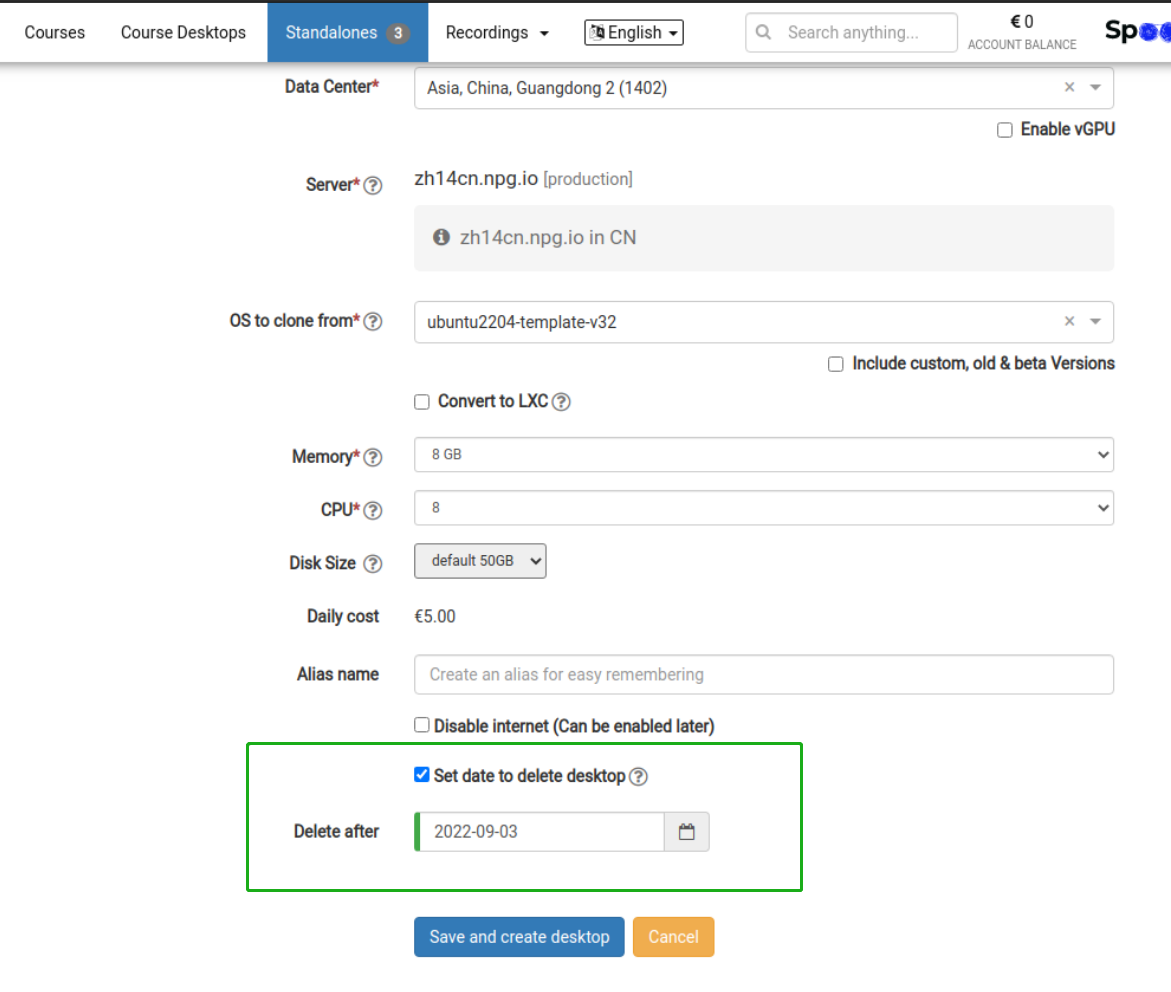
-
Alternatively, you can set a deletion date for the standalone machine via the Options menu.
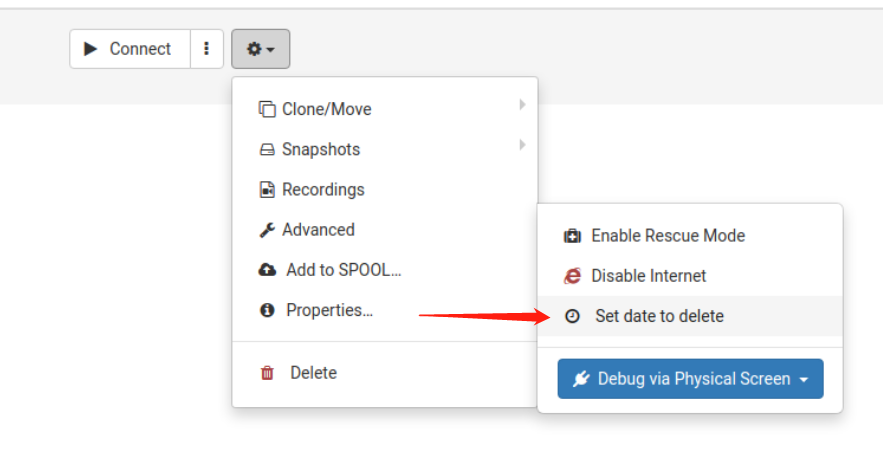
How to remove a scheduled deletion date
1. Navigate to the Options menu and select the "Scheduled to delete on" option.
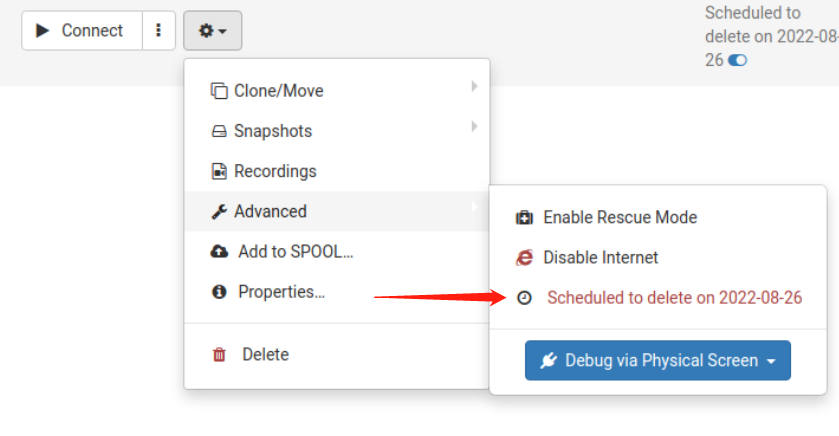
2. Hover over the blue toggle icon and click it to instantly clear the deletion date.
