Trainer Session Recordings
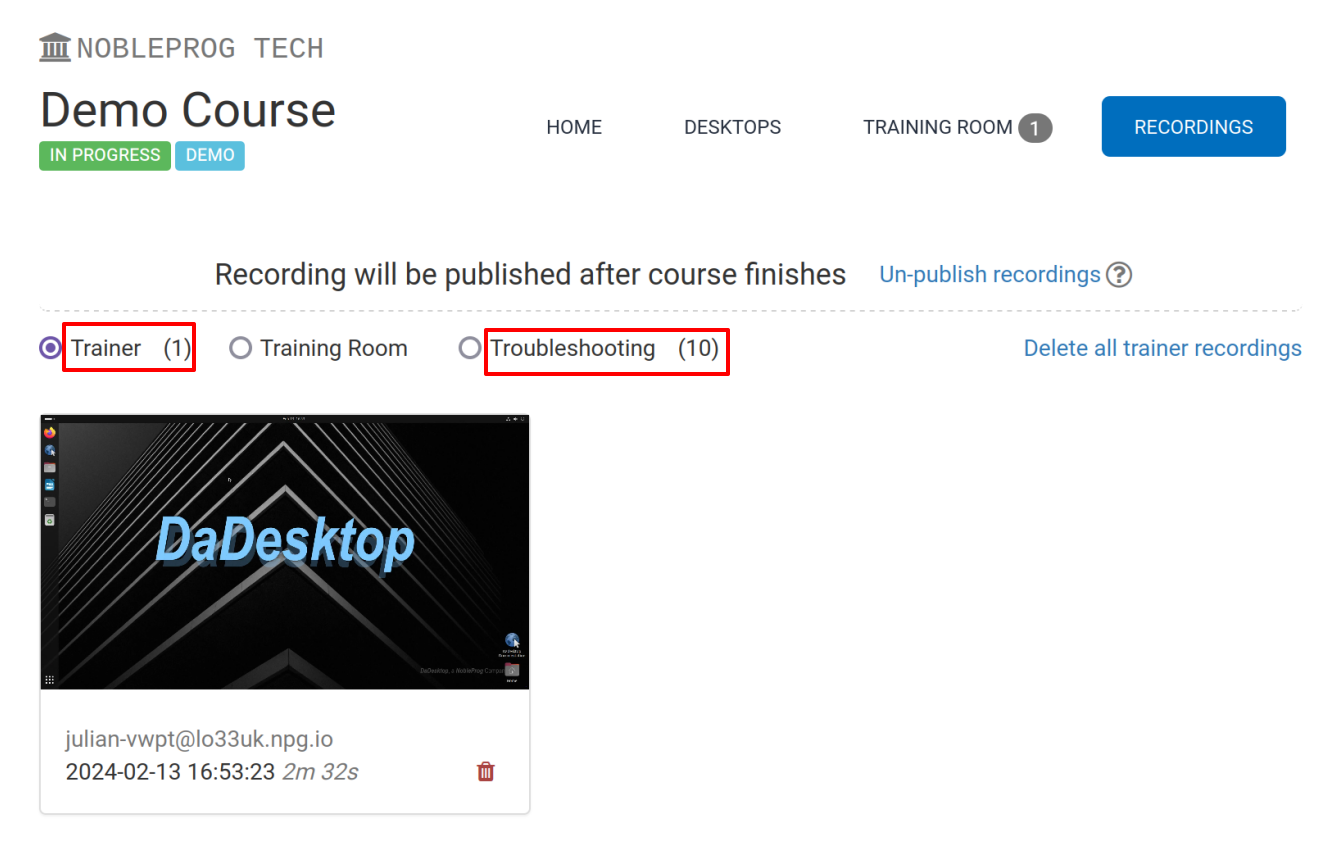
DaDesktop offers multiple methods for capturing desktop and course activities. These capabilities include Troubleshooting recordings, Training Room recordings, and Trainer recordings.
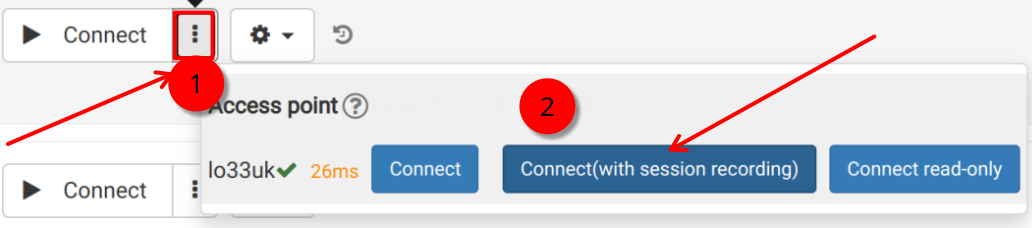
Specifically, Trainer recordings capture the activity on the Trainer's DaDesktop environment. To initiate a session recording on the Trainer's machine, follow the steps below.
- Select the three vertical dots to open the contextual menu, then choose 'Connect (with session recording)'.
-
An audio/video recording of the Trainer's session is generated but becomes accessible only after the virtual classroom has been closed and the file is finalized. Note that SuperAdmin users have the additional ability to monitor these recordings in real time as they occur.
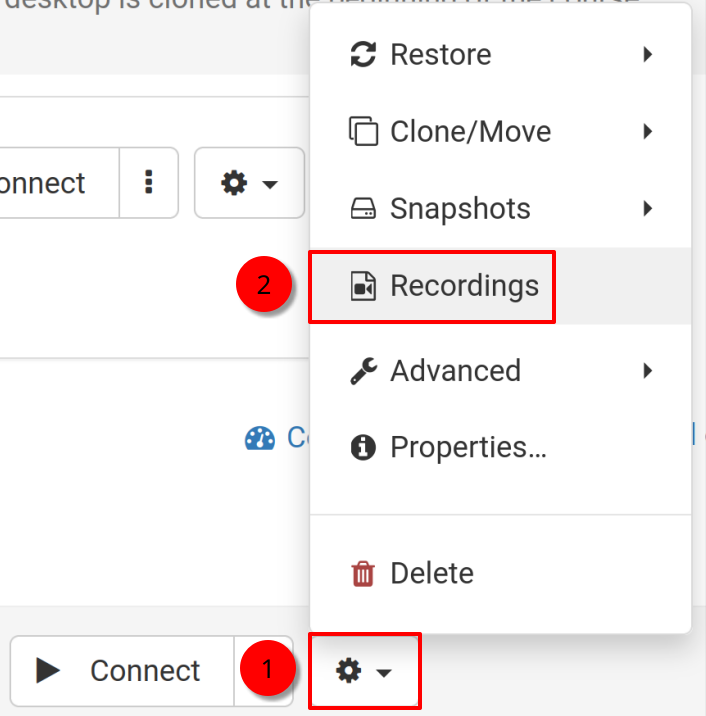
- To review or edit the captured content, navigate to the Recordings menu via the 'cog' icon.
Recordings
There are two primary ways to access and manage recordings of the Trainer's machine.
- As shown previously, recordings can be accessed directly from the Recordings menu, where they can be played back or deleted as needed. The double spanner icon identifies 'Troubleshooting Recordings', which are automatically captured for diagnostic purposes rather than for presentation delivery.
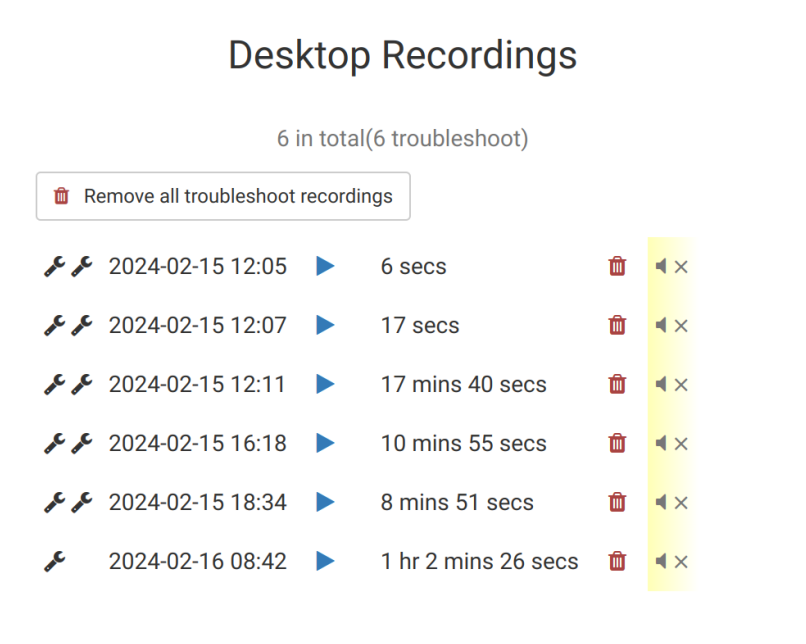
2. Alternatively, by navigating to the 'Recordings' tab within a specific course, users can view Trainer recordings, Training Room recordings, and Troubleshooting recordings.