Recycle Bin
Once a course concludes, all associated virtual machines—including the Fresh Start, Trainer, and Participant machines—are automatically removed after a brief interval.
A new capability allows you to retrieve these machines from the Recycle Bin, even some time after their initial removal. The duration for which they remain recoverable is variable, depending on factors such as server disk capacity and course activity. While there is no fixed retention period, machines typically remain accessible for restoration for at least a couple of months following the course's completion.
Individual machines can be Restored to their original course if it still exists. Alternatively, they can be Restored to a Standalone Desktop, or, if no longer needed, they can be Deleted entirely.
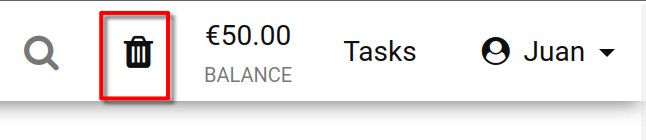
The status of your Recycle bin is indicated by the icon: if it appears black, there are machines available for restoration; if it is greyed out, the bin is empty and no machines can be recovered.
Additionally, you can filter the list of machines in the Recycle Bin by searching for a specific name, server name, or course title.
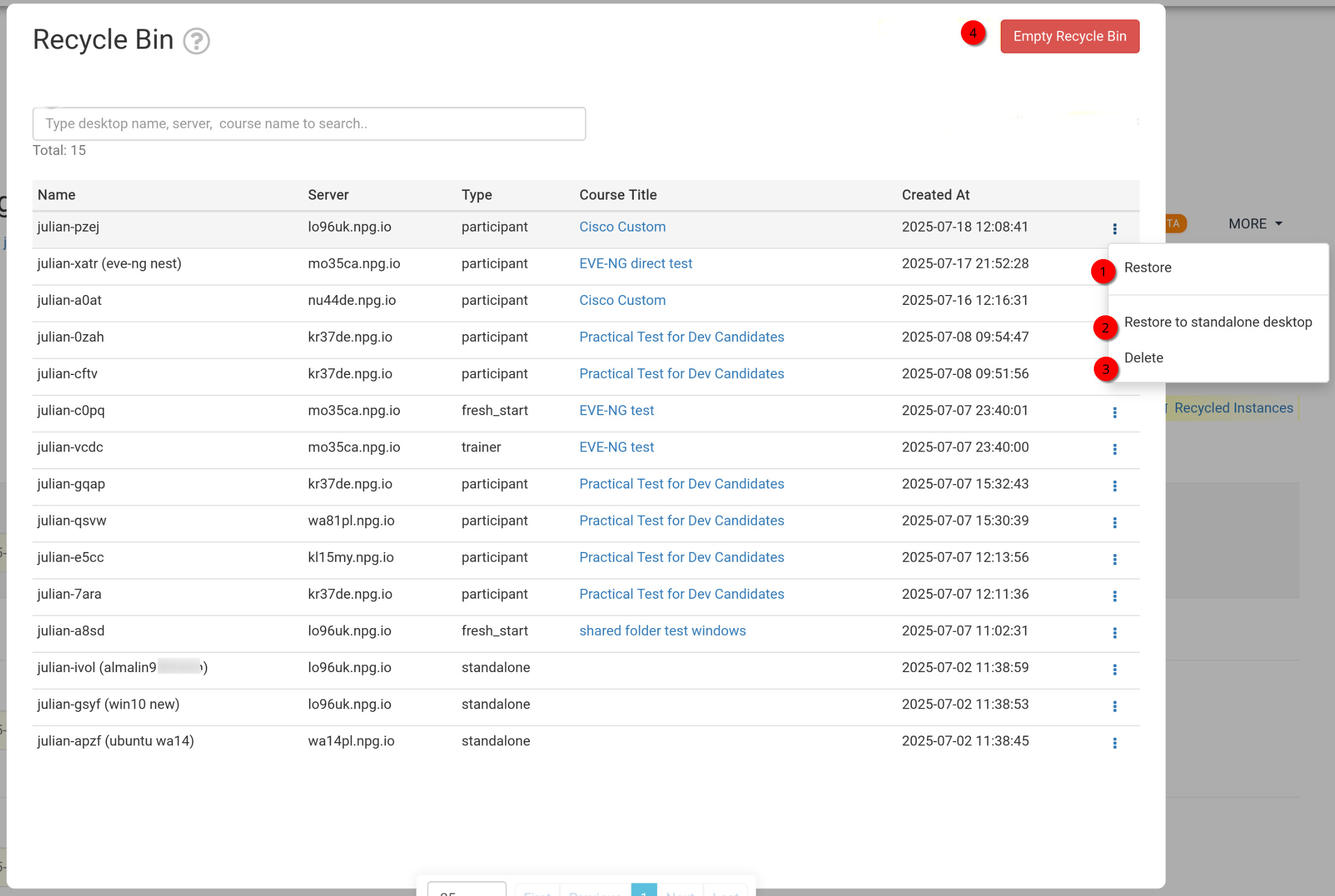
Steps to Restore or Delete Machines from the Recycle Bin
- Restore - Select this option to return a machine to its original course. Note that if the course is no longer active, the machine cannot be restored to it and must instead be converted to a Standalone machine.
- Restore to Standalone Desktop - This option is typically chosen when the original course has ended. Converting to a Standalone machine offers greater flexibility, as it remains available for as long as you need it.
- Delete - Use this action to permanently remove a single machine from the Recycle Bin. Please note that once deleted, the machine cannot be recovered.
- Empty Recycle Bin - Clicking the Red Empty Recycle Bin button will permanently delete all machines in the bin, making them unrecoverable.