Choosing Multiple Course Dates
When setting up a course, you have the option to schedule it across several distinct dates. This feature allows you to tailor availability for your participants, ensuring the schedule aligns effectively with their needs.
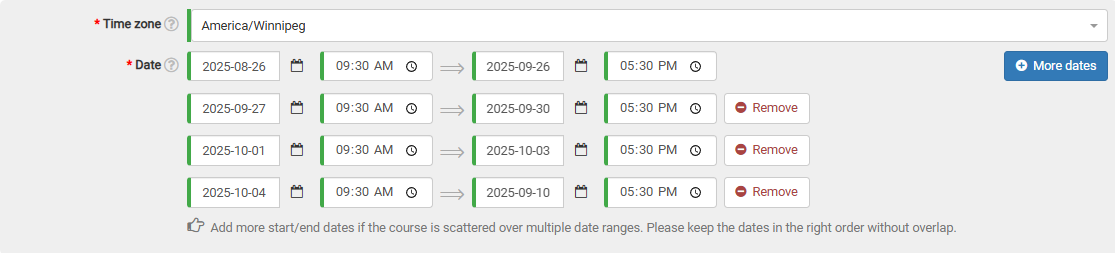
In the date section of the course form, select the "More dates" button. This action will append an additional line for date selection directly onto the form.

You are free to add as many date ranges as necessary, provided that they do not overlap.
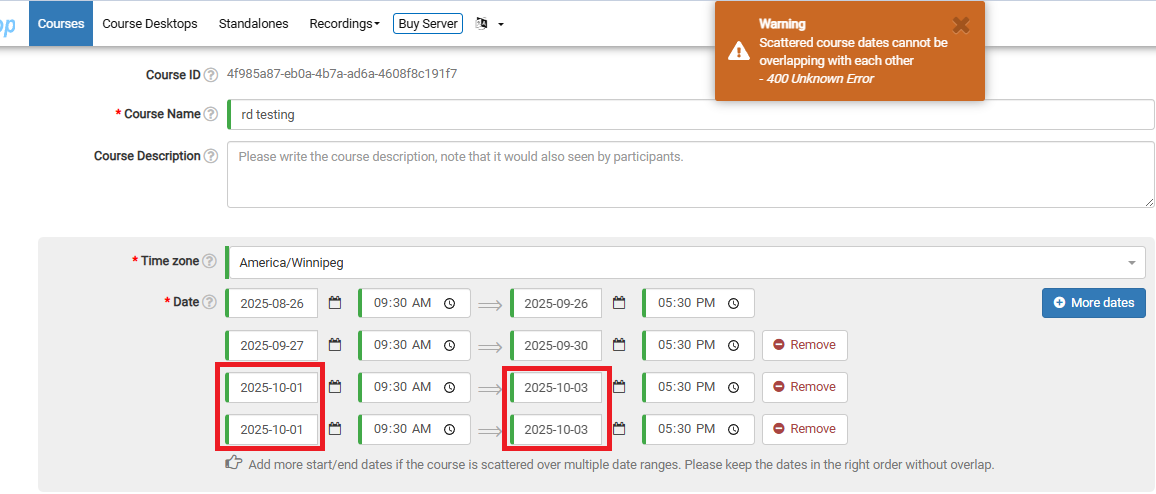
Should any overlap occur, a warning message will appear at the top of the page if you attempt to submit the course. The example below illustrates an instance where two identical date ranges were selected by mistake.